Rules and Automation
Rules and automation turn repeated cleanup decisions into saved behavior. Herald exposes automation through Settings > Sync & Cleanup, MCP tools, scheduled cleanup, and dry-run status.
Overview
Section titled “Overview”Use Settings > Sync & Cleanup for future-mail automation rules, reusable AI prompts, and cleanup rules that target older mail by sender or domain. These are shipped user-facing features backed by Herald’s rule and cleanup-rule storage.
Screen Anatomy
Section titled “Screen Anatomy”| Area | What it shows |
|---|---|
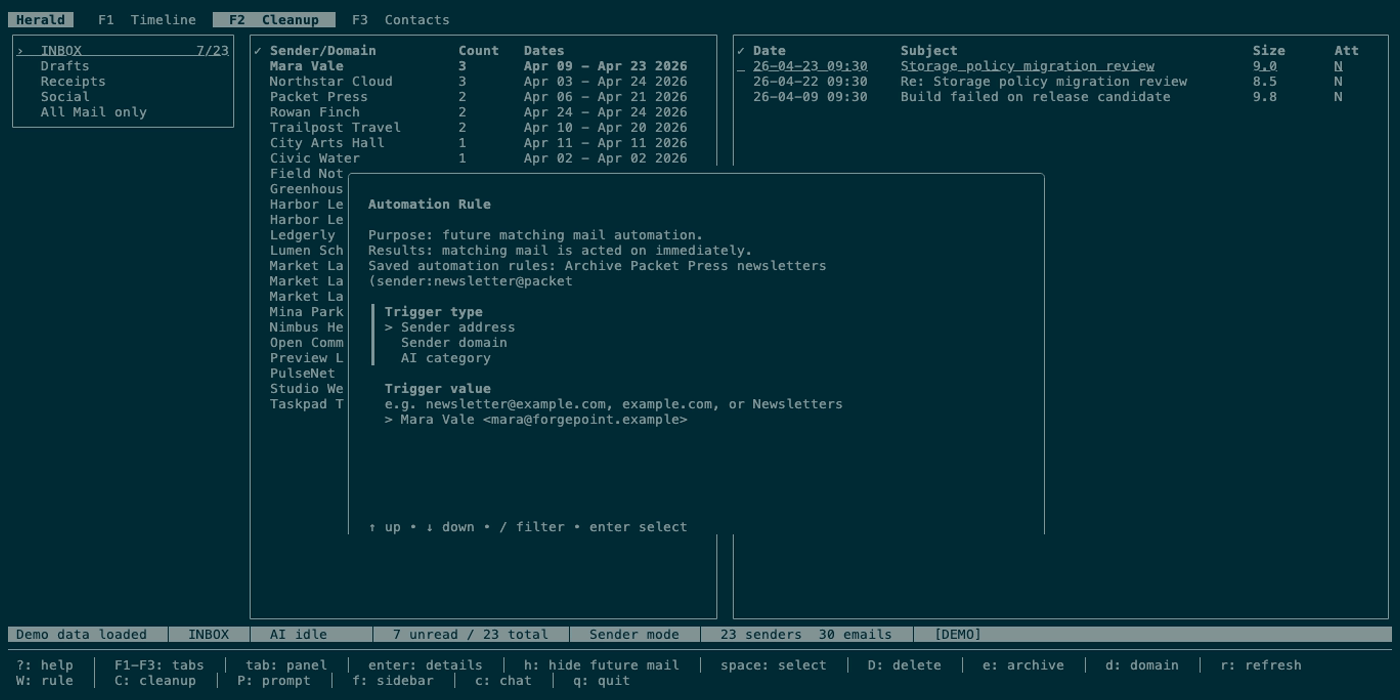
| Automation rule editor | Automation Rule form with trigger group, action multiselect, action detail fields, and saved-rule summary. |
| Trigger fields | Trigger type sender, domain, or AI category; trigger value such as address, domain, or category. |
| Action list | Desktop notification with Herald message context where supported, move, archive, delete, webhook POST, and shell command. |
| Action detail fields | Destination folder, webhook URL/body, shell command, notification title/body. |
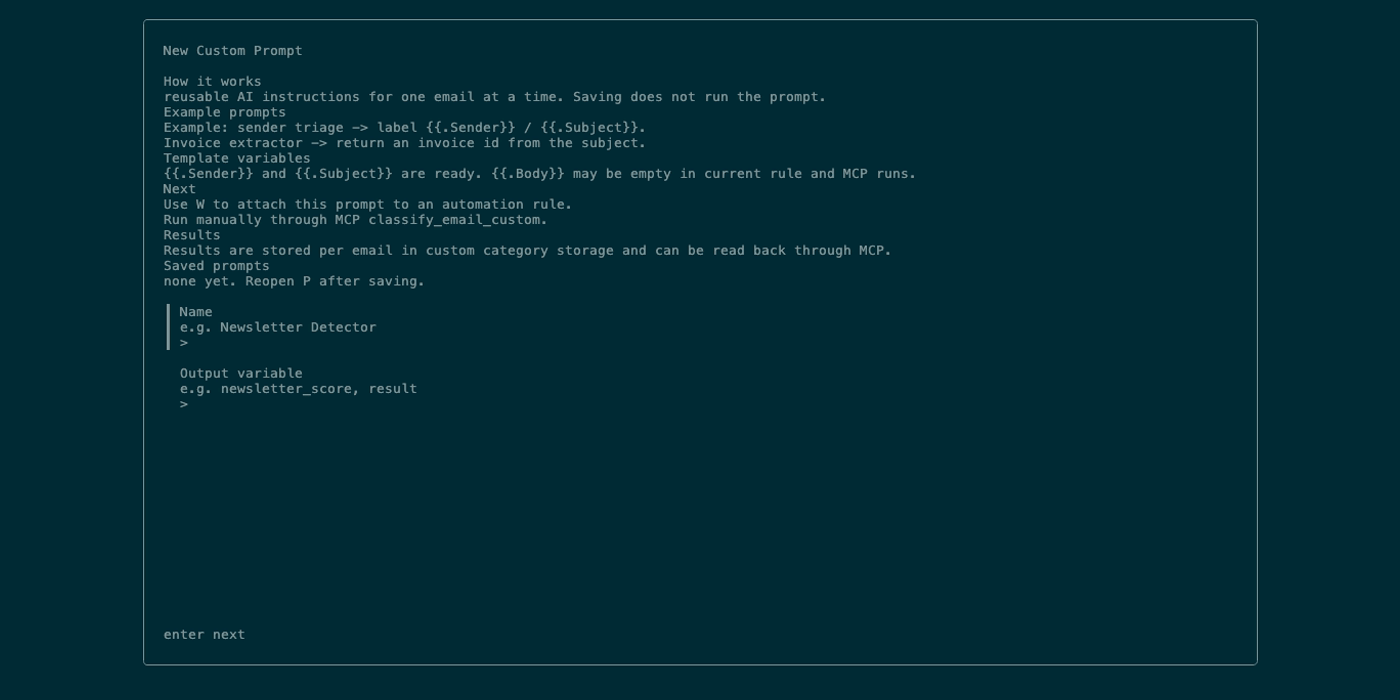
| Prompt editor | Name, output variable, system prompt, user template, and saved-prompt summary. |
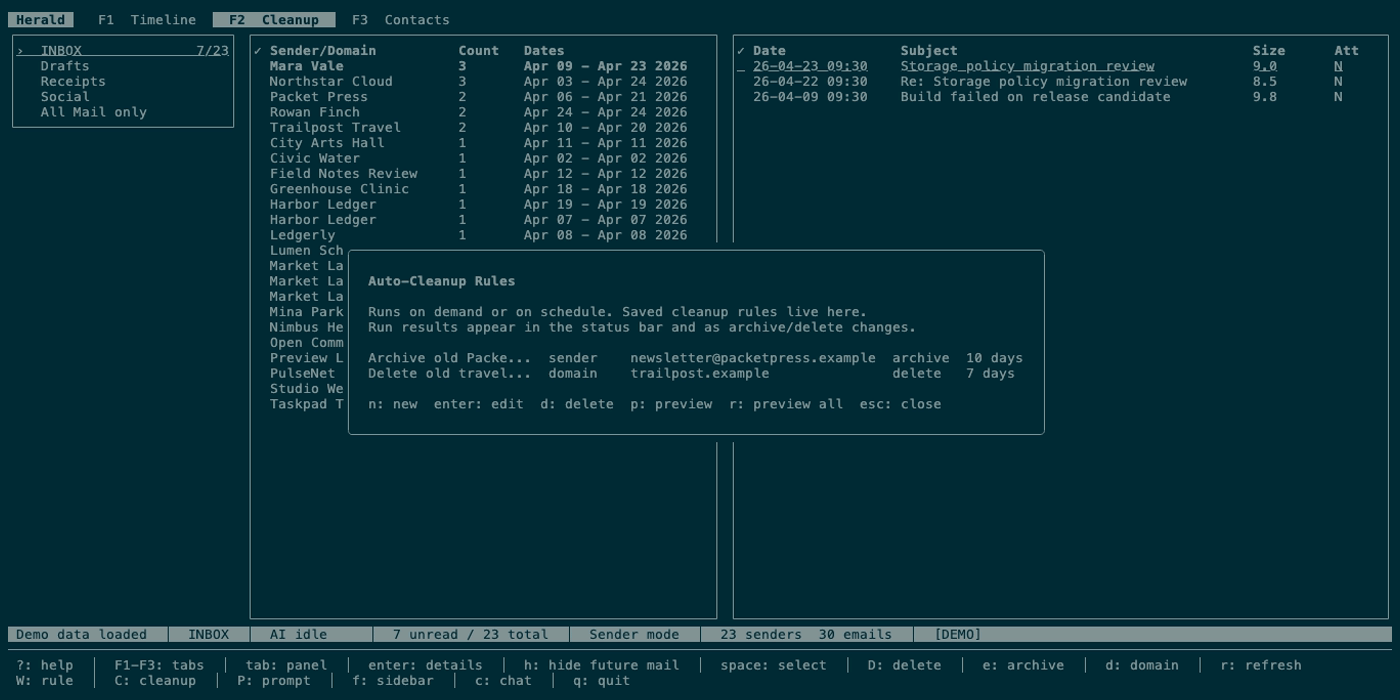
| Cleanup manager list | Saved cleanup rules with name, match type, match value, action, older-than days, enabled state, and last run. |
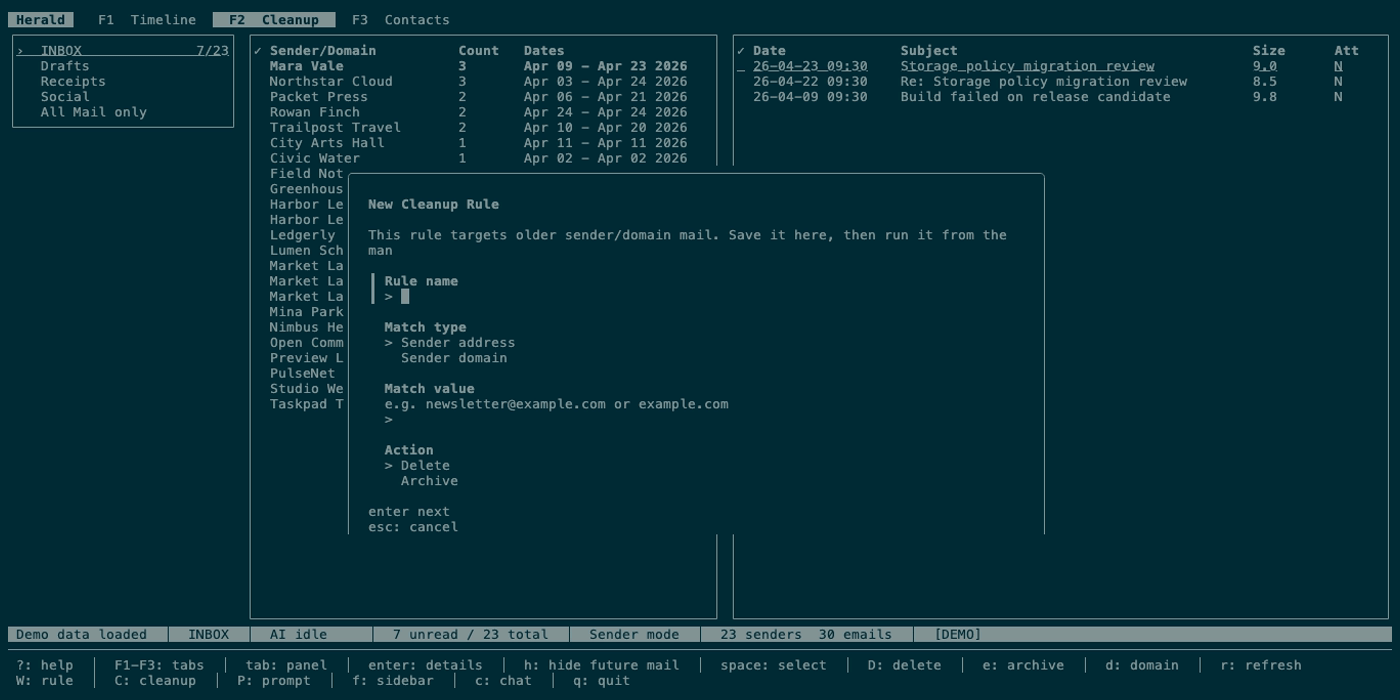
| Cleanup manager edit form | Rule name, match type, match value, action, older-than days, and enabled toggle. |
| Dry-run preview | Compact centered modal showing matched messages, folders, categories, and planned actions before save, enable, or live run. |
| Status bar | Run results, dry-run marker, deletion/archive progress, and error messages. |
Controls
Section titled “Controls”| Key | Context | Preconditions | Result |
|---|---|---|---|
S then Sync & Cleanup launcher | Main UI | Settings closed. | Opens automation rule editor. |
esc | Rule editor | Form not completed. | Cancels and closes the rule editor. |
S then Sync & Cleanup launcher | Main UI | Settings closed. | Opens custom prompt editor. |
esc | Prompt editor | Form not completed. | Cancels and closes the prompt editor. |
S then Sync & Cleanup launcher | Main UI | Settings closed. | Opens cleanup manager. |
n | Cleanup manager list | Manager open. | Creates a new cleanup rule. |
enter | Cleanup manager list | A rule exists. | Edits selected cleanup rule. |
p | Cleanup manager list | A rule exists. | Opens dry-run preview for the selected cleanup rule. |
d / D | Cleanup manager list | A rule exists. | Deletes selected cleanup rule. |
r | Cleanup manager list | Manager open. | Opens dry-run preview for all enabled cleanup rules. |
s | Automation or cleanup dry-run preview | Preview was opened from a new or edited rule. | Saves the staged rule disabled. |
E | Automation or cleanup dry-run preview | Preview was opened from a new or edited rule. | Enables the staged rule after confirmation for move/archive/delete or external actions. |
R | Cleanup dry-run preview | Preview is visible and Herald is not launched with --dry-run. | Prompts for confirmation before live archive/delete execution. |
j / down | Cleanup manager list | Manager open. | Moves down. |
k / up | Cleanup manager list | Manager open. | Moves up. |
esc | Cleanup manager | Manager open. | Closes list or cancels edit form back to list. |
Workflows
Section titled “Workflows”Create a Future-Mail Automation Rule
Section titled “Create a Future-Mail Automation Rule”- Press
S. - Choose
Sync & Cleanup. - Launch automation rules.
- Choose trigger type.
- Enter trigger value.
- Select one or more actions.
- Fill details for move, webhook, command, or notification actions.
- Complete the form to open the dry-run preview.
- Review the matched messages and planned actions before saving disabled or enabling the rule.
Create a Custom AI Prompt
Section titled “Create a Custom AI Prompt”- Press
S. - Choose
Sync & Cleanup. - Launch custom prompts.
- Enter a name.
- Optionally enter an output variable.
- Write system instructions.
- Write a user template using placeholders such as
{{.Sender}},{{.Subject}}, and{{.Body}}. - Complete the form to save.
Custom prompts are reusable instructions. A rule or MCP tool must invoke a saved prompt before it produces results.
Create a Cleanup Rule
Section titled “Create a Cleanup Rule”- Press
S. - Choose
Sync & Cleanup. - Launch cleanup rules.
- Press
n. - Fill rule name, match type, match value, action, older-than days, and intended enabled state.
- Complete the form to open the dry-run preview.
- Save disabled with
s, or enable withEafter confirmation for archive/delete rules. - Later, press
pto preview the selected saved rule orrto preview all enabled rules. - From the dry-run preview, press
Rand confirm before running archive/delete live, or rely on configured scheduling.
Configure Scheduled Cleanup
Section titled “Configure Scheduled Cleanup”- Press
Sto open settings. - Set cleanup schedule hours in the sync/cleanup section.
- Save settings.
- Reopen the cleanup manager from
Settings > Sync & Cleanupto review enabled rules.
States
Section titled “States”| State | What happens |
|---|---|
| No saved automation rules | Rule editor summary says none yet. |
| Saved automation rules | Rule editor summary shows a few saved rules and a count of additional rules. |
| Prompt validation | Prompt name is required. |
| No cleanup rules | Cleanup manager explains that n creates one. |
| Disabled cleanup rule | Manager list marks the rule disabled and scheduled runs skip it. |
| Dry-run preview | Compact preview shows matched messages, sender/domain/category, folder, and planned action without mutating mail. It fits at 80x24; at 50x15, Herald shows the standard minimum-size guard. |
| Run all | Cleanup manager opens a dry-run preview for enabled rules before live execution is available. |
| Dry-run mode | Status shows [DRY RUN]; live cleanup execution from preview is blocked until Herald is relaunched without dry-run mode. |
| AI unavailable | AI-category triggers and custom prompt execution cannot classify new content. |
| Dangerous actions | Delete, shell command, and webhook actions can affect mail or external systems. |
Data And Privacy
Section titled “Data And Privacy”Rules are stored in Herald’s backend and may include trigger values, destination folders, webhook URLs, webhook body templates, shell commands, notification text, and custom AI prompts. Cleanup rules can delete or archive matching mail. Webhooks send configured email-derived data to external URLs. Shell commands run locally with environment variables derived from matching mail.
Troubleshooting
Section titled “Troubleshooting”If a rule does not match, compare trigger type and value with the exact sender/domain/category shown in Timeline grouping.
If a custom prompt saves but appears to do nothing, remember that saved prompts are invoked by rules or MCP tools; saving alone does not run a prompt.
If cleanup rules do not run on schedule, check cleanup.schedule_hours and confirm the app or daemon surface responsible for scheduled work is active.
If experimenting with delete rules, use the dry-run preview first. In global --dry-run mode, preview remains available but live archive/delete execution is intentionally blocked.
Screenshot Placeholders
Section titled “Screenshot Placeholders”