Timeline
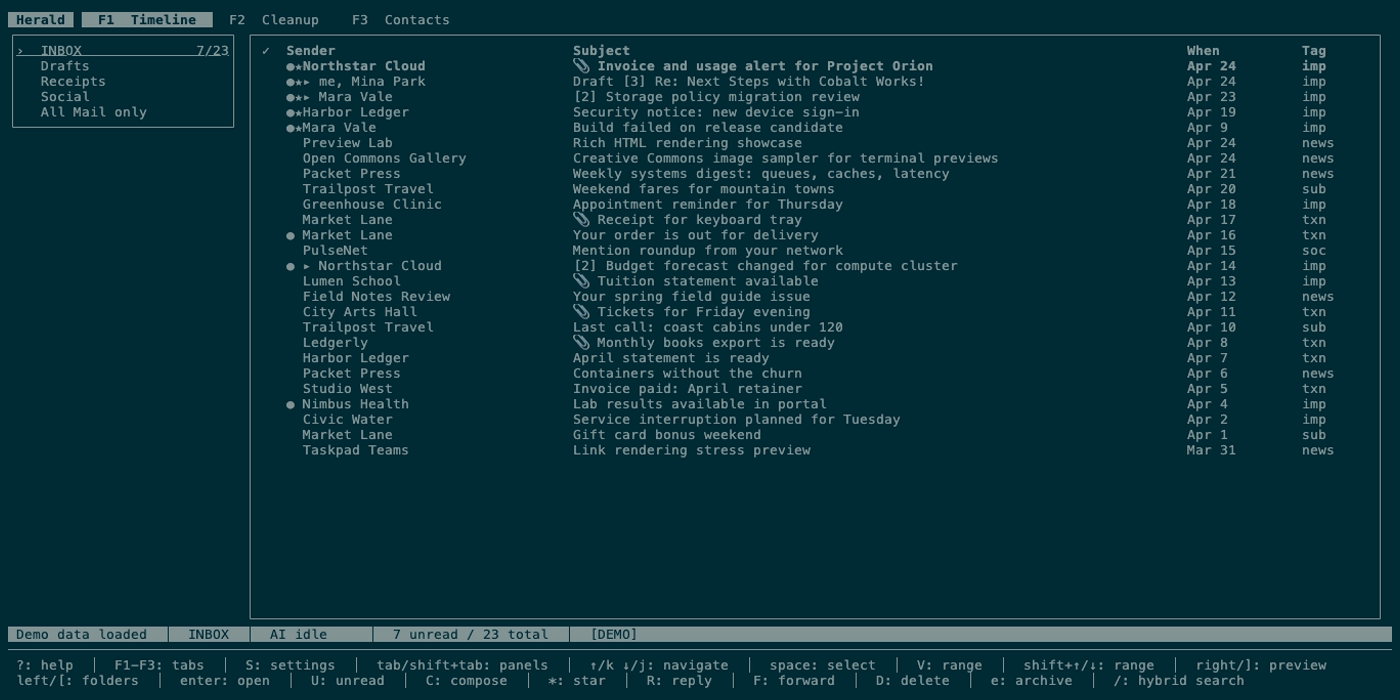
Timeline is Herald’s primary reading view. It shows chronological mail rows, thread grouping, search results, split or full-screen previews, quick replies, attachment saving, text selection, and actions that operate on the current message.
Overview
Section titled “Overview”Press 1 to open Timeline. Use it when you want to scan mail, switch folders, search across cached content, read a message, reply or forward, save attachments, star important threads, unsubscribe, or copy message text. You can drive the same flow with keys or by clicking rows and scrolling the list or preview with a mouse or trackpad.
Screen Anatomy
Section titled “Screen Anatomy”| Area | What it shows |
|---|---|
| Folder sidebar | Folder tree, unread counts, total counts, expandable parents, and virtual All Mail only when available. |
| Timeline table | One row per visible thread or email. Columns prioritize Sender, Subject, When, and Tag when width allows. |
| Grouped Timeline | G cycles the list between thread, sender, and domain grouping for reading and cleanup review. |
| Sender cell | Sender display name plus unread indicator, star indicator, thread count, and child-row prefix for expanded threads. Wider terminals may also show the muted email address. |
| Subject cell | Subject for the newest thread message or the individual email row, with an attachment marker when Herald detected attachments. |
| When column | Local, human-readable message date such as a time, yesterday label, weekday, or calendar date depending on age. |
| Tag column | AI classification/category when present and when width allows. |
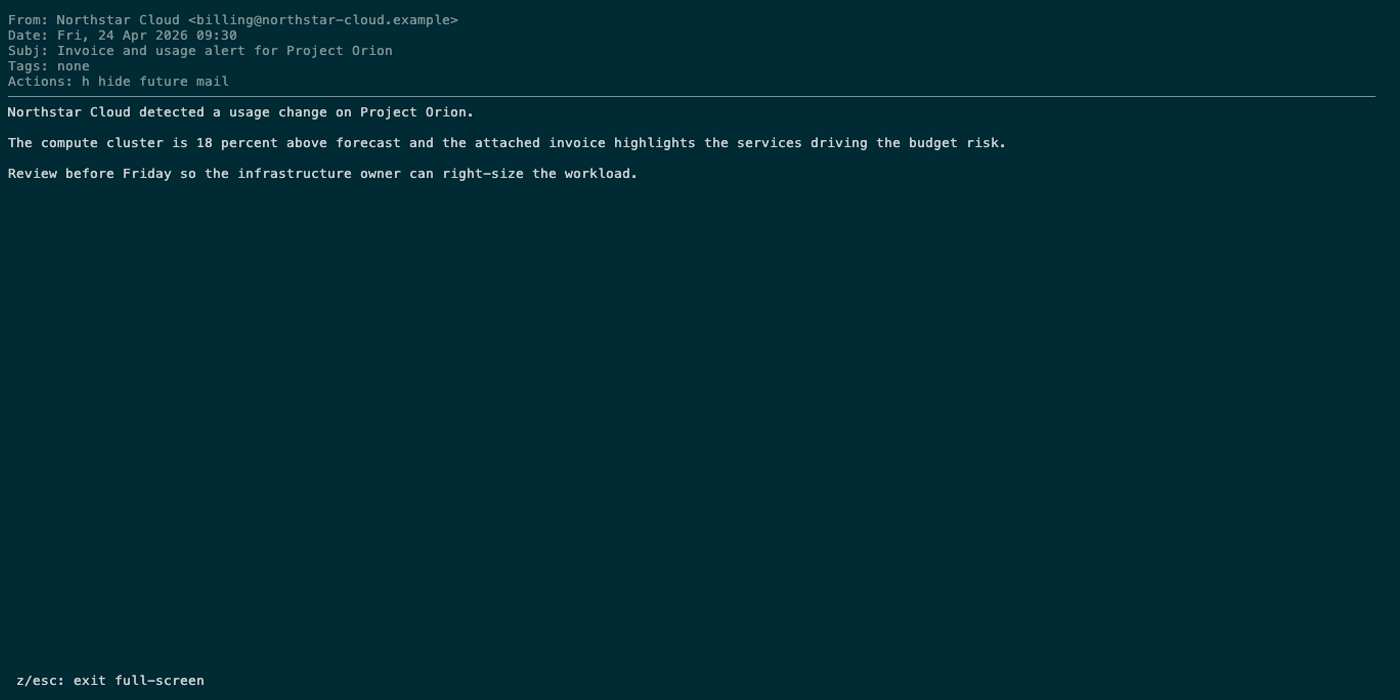
| Preview panel | Message header, body text, tags, unsubscribe/hide actions, attachments, inline image notes, loading/error state, and scroll position. |
| Full-screen preview | Same message content expanded across the terminal, with bounded inline images in Kitty-protocol terminals such as Ghostty or Kitty, iTerm2-compatible terminals, and safe OSC 8 fallback links in local TUI sessions. |
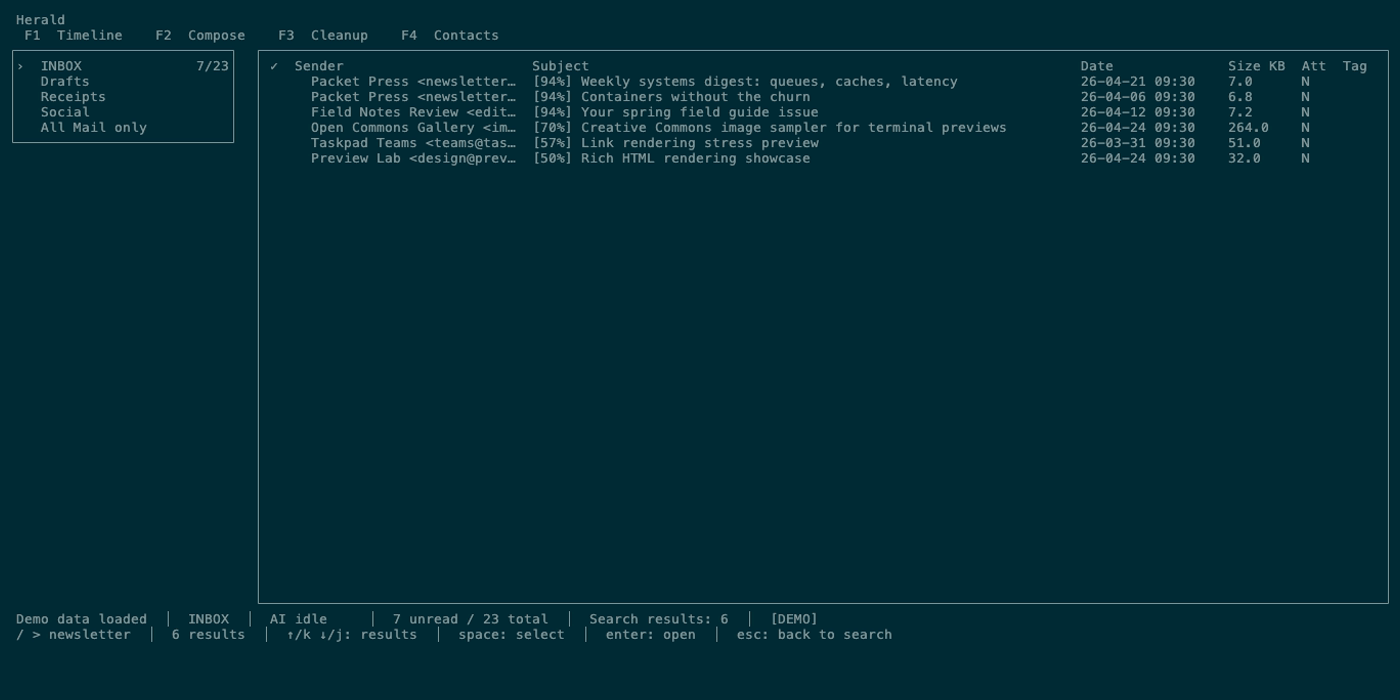
| Search input/results | Search prompt, search mode, result count, and focused result rows. |
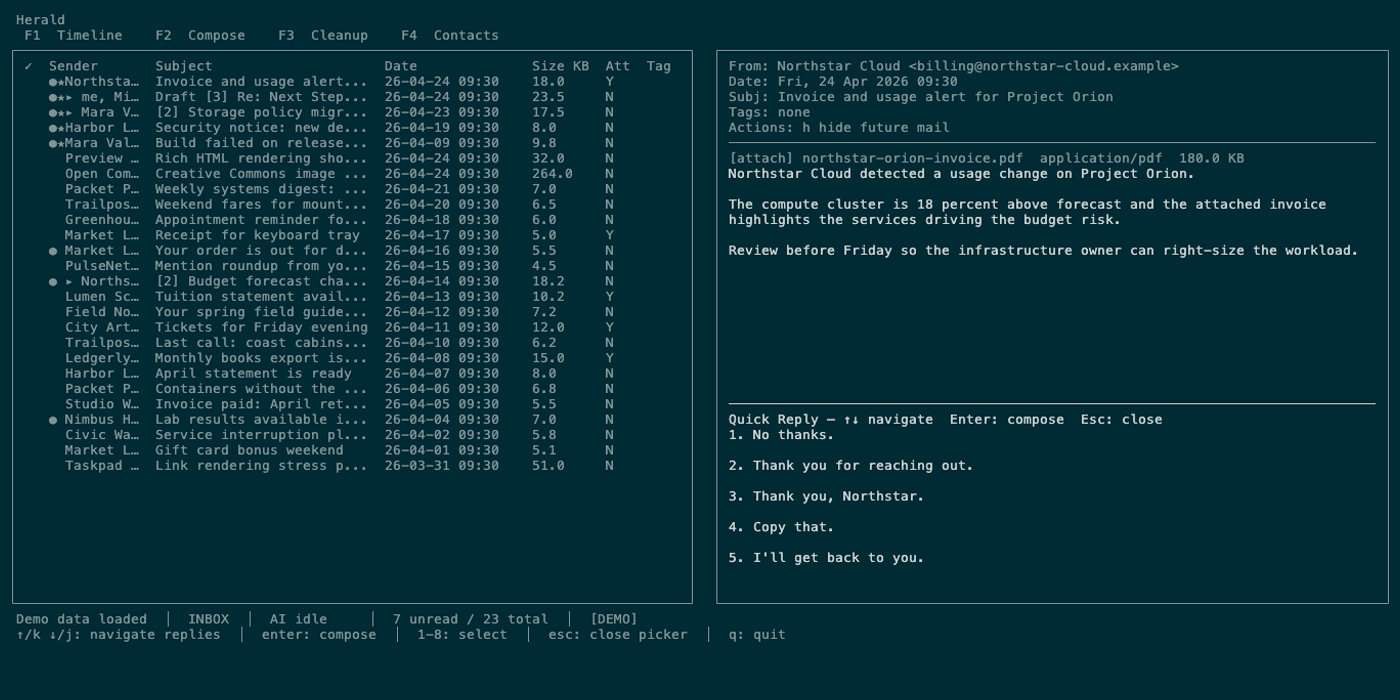
| Quick reply picker | A small choice list of canned and optional AI-generated replies. |
Controls
Section titled “Controls”| Key | Context | Preconditions | Result |
|---|---|---|---|
enter | Timeline row | A row is selected. | Opens the email preview. If the row is a collapsed thread, expands the thread first. |
enter | Search results | Search result focus is active. | Opens the selected result. If preview focus is active, returns focus to results. |
j / down | Timeline list | Timeline list is focused. | Moves down and updates preview if one is open. |
k / up | Timeline list | Timeline list is focused. | Moves up and updates preview if one is open. |
space | Timeline list | Timeline list is focused and the view is not read-only. | Toggles selection for the current message or collapsed thread. |
M | Timeline or preview | Received messages from one account; view is not read-only. | Opens a searchable folder picker for highlighted or selected mail; Enter moves, Escape cancels. |
shift+down / shift+up | Timeline list | Timeline list is focused, the view is not read-only, and the terminal reports shifted arrows. | Extends or shrinks message selection across visible rows. Plain movement ends the range and keeps the selected messages. |
V, then j / k | Timeline list | Timeline list is focused and the view is not read-only. | Enters fallback range selection mode and extends the selected range without requiring shifted arrows. Press V or esc to finish. |
G | Timeline list | Timeline list is focused. | Cycles thread, sender, and domain grouping. Sender/domain groups are the cleanup browse workflow. |
j / down | Preview/full-screen | Preview or full-screen is focused. | Scrolls body down, or extends visual selection. |
k / up | Preview/full-screen | Preview or full-screen is focused. | Scrolls body up, or shrinks visual selection. |
/ | Timeline | Not loading and search is closed. | Opens Timeline search. |
ctrl+i / tab | Search input | Search query is non-empty. | Runs server IMAP search instead of local search. |
esc | Search/preview states | Search, preview, full-screen, quick reply, visual mode, or chat filter is active. | Unwinds the active state in the safest order. |
* | Timeline row | Not read-only. | Toggles star on the current row email. |
R | Timeline row | Not loading and not read-only. | Opens Compose as a reply to the selected email. |
F | Timeline row | Not read-only. | Opens Compose as a forward of the selected email. |
d / backspace | Timeline or selected message | Not read-only. | Starts delete confirmation for the current or selected target. |
D / shift+backspace | Timeline or selected message | Not read-only. | Immediately queues deletion for the current or selected target without confirmation. |
e | Timeline or selected message | Not read-only. | Starts archive confirmation for the current or selected target. |
A | Timeline row | AI configured. | Re-classifies the current email. |
ctrl+q | Timeline row | A current email exists. | Opens or closes the quick reply picker. |
z | Preview | A selected email is open. | Toggles full-screen reading. |
s | Preview | Preview has attachments. | Opens attachment save prompt with a default Downloads path. |
[ / ] | Preview | Message has more than one attachment. | Selects previous or next attachment. |
i | Preview | Body includes text/calendar or .ics invitation data and Calendar is available. | Opens the Create Calendar Event picker for a writable calendar source. |
u | Preview | Body has List-Unsubscribe data and tab is not read-only. | Opens unsubscribe confirmation. |
h / H | Preview | A selected email is open and tab is not read-only. | Creates a hide-future-mail rule for the sender. |
v | Preview/full-screen | Body wrapped lines are available. | Toggles visual text selection. |
y | Preview/full-screen | Visual selection is active. | Copies selected lines and exits visual mode. |
y then y | Preview/full-screen | Body wrapped lines are available. | Copies the current visible body line. |
Y | Preview/full-screen | Body wrapped lines are available. | Copies the full wrapped body. |
m | Timeline | Any Timeline state. | Toggles mouse-selection mode for terminal copy behavior. |
| Click row | Timeline list | Terminal sends mouse events and a row is visible. | Selects the row and opens the split preview. |
| Wheel/trackpad scroll | Timeline list | Terminal sends mouse wheel events. | Moves through Timeline rows in small steps and refreshes the open preview. |
| Wheel/trackpad scroll | Preview/full-screen | Preview content is scrollable. | Scrolls the message body. |
| Click OSC 8 link | Preview/full-screen | Terminal supports OSC 8 hyperlinks. | Opens the linked URL through the terminal. |
Workflows
Section titled “Workflows”Read a Message
Section titled “Read a Message”- Press
1. - Use
j/kto select a row. - Press
enter. - Read in the split preview. Press
zfor full-screen. - Press
escto leave full-screen or close the preview.
Read with a Mouse
Section titled “Read with a Mouse”- Click a Timeline row to select it and open the split preview.
- Scroll over the Timeline list to move between messages, or scroll over the preview to read more body text.
- Click readable email links such as
Display in your browserwhen your terminal supports OSC 8 hyperlinks. - Press
mif you want to temporarily hand the mouse back to the terminal for native text selection.
Search Timeline
Section titled “Search Timeline”- Press
/. - Type a query. Herald debounces local search while you type.
- Use prefixes when needed:
/bfor body search,/*for cross-folder search, or? queryfor semantic search. - Press
enterto run or focus existing results. - Press
ctrl+iortabfrom the search input to run server IMAP search. - Press
esconce to leave results or twice to clear search.
Review Cleanup Groups
Section titled “Review Cleanup Groups”- Press
1. - Press
Guntil Timeline is grouped by sender or domain. - Move through groups with
j/kor arrows. - Press
spaceto select groups, then pressdto delete ora/eto archive. - Confirm only when the status description names the expected sender or domain group.
Reply or Forward
Section titled “Reply or Forward”- Select an email row.
- Press
Rto reply orFto forward. - Herald switches to Compose and prefills To/Subject/body context.
- Finish the draft and send with
ctrl+s.
Use Quick Replies
Section titled “Use Quick Replies”- Select or open an email.
- Press
ctrl+q. - Move with
j/kor press number1through8. - Press
enterto open the selected reply in Compose. - Press
escto cancel.
Save an Attachment
Section titled “Save an Attachment”- Open an email with attachments.
- Use
[and]to choose the attachment when there are several. - Press
s. - Edit the destination path if needed.
- Press
enterto save orescto cancel.
Import a Calendar Invitation
Section titled “Import a Calendar Invitation”- Open an email with an
.icsattachment ortext/calendarpart. - Press
i. - Choose the writable calendar with
j/kwhen more than one is available. - Press
enterto create the event, or update it when the selected calendar already has the same invitation UID. - Press
sto skip a duplicate prompt orescto cancel without writing to the calendar.
States
Section titled “States”| State | What happens |
|---|---|
| Loading | Existing cached rows remain visible when possible; new IMAP work is reflected in the top sync strip and status bar. |
| Empty folder | Timeline shows an empty row area and key hints still expose refresh, sidebar, chat, and tabs when available. |
| Preview loading | Header/preview area opens while Herald fetches and MIME-parses body text and attachments. |
| Preview error | The preview reports a body fetch or parse failure without crashing the tab. |
| Read-only diagnostic | All Mail only disables destructive actions, server/body/cross/semantic search, and mailbox mutations. |
| AI unavailable | Tags may be absent; semantic search, AI replies, and re-classification show concise unavailable messages. |
| Attachment prompt | The save-path input captures keys until enter or esc. |
| Unsubscribe confirmation | Status asks for y confirm or n/Esc cancel before running the unsubscribe method. |
| Narrow terminal | Sidebar and chat may hide; preview and table widths shrink. Below the minimum size, the global size guard appears. |
Data And Privacy
Section titled “Data And Privacy”Timeline reads message metadata from SQLite and IMAP-backed cache. Opening a message fetches the full message body by UID, parses text/plain content, inline images, attachments, and unsubscribe headers, and can cache body text for later use. Marking read, starring, deleting, archiving, unsubscribing, hiding future mail, and attachment saving write to IMAP, SQLite, local files, or rules depending on the action.
Inline MIME image bytes are never written to disk for preview. In full-screen previews, Herald prefers Kitty graphics in Kitty-protocol terminals such as Ghostty on macOS or Kitty itself, and supports iTerm2’s inline image protocol as well. In local TUI sessions that cannot render inline graphics, Herald serves the currently previewed images from a random localhost URL and exposes short OSC 8 links; those links are revoked when the preview changes. Remote HTML image URLs are shown as links only until you press o to reveal them for the current message with bounded, no-cookie, no-referrer requests and sanitized tracker parameters.
AI actions such as semantic search, classification, image descriptions, and quick replies send selected query or message context to the configured AI backend. Ollama is local by default; external providers receive the context required for the requested action.
Troubleshooting
Section titled “Troubleshooting”If search appears stuck, press esc to return from results to input, then press esc again to clear the search state.
If delete/archive/star does nothing, check whether you are in All Mail only read-only diagnostic mode.
If attachments do not save, verify the destination path is writable. The default path expands to ~/Downloads/<filename>.
If quick replies only show canned choices, the AI backend is unavailable or still generating; the canned replies remain usable.
Screenshot Placeholders
Section titled “Screenshot Placeholders”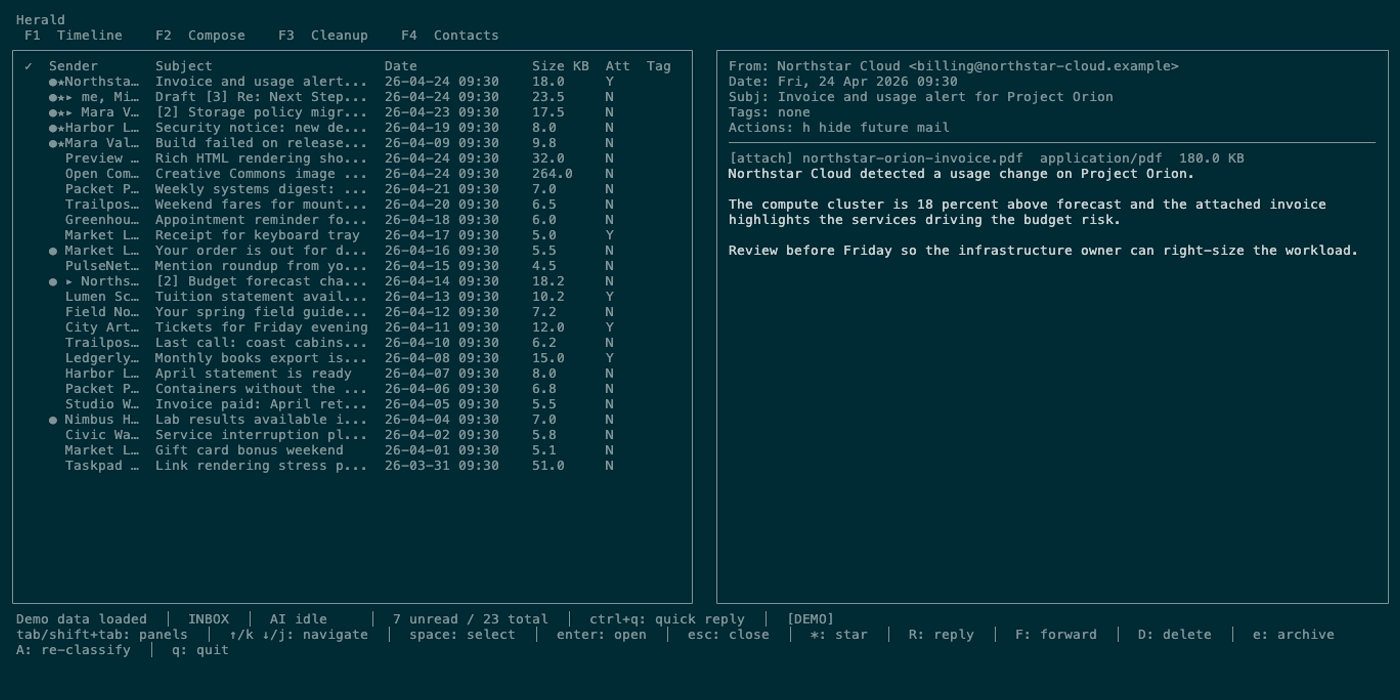
Related Pages
Section titled “Related Pages”Move messages to a folder
Section titled “Move messages to a folder”Select messages with Space, then press M to choose an existing folder. Type part of the folder name, use Up/Down to choose, and press Enter to move; Escape cancels without changing messages. With no selection, the action uses the highlighted row (all messages in a collapsed thread) or the focused preview message.
- Move several selected messages together within one account. Select only received messages; drafts and mixed-account selections show an explanation without moving anything.
- Keep failed messages selected if only part of a move succeeds, so you can retry them.
- Use the same flow in
--demoto see messages move into the destination without touching a real mailbox. - Remap the action through the
mail.movecommand in a custom keyboard profile; help and selection hints follow the binding.