First 5 Minutes
Herald can feel dense the first time because it is built for fast keyboard and mouse-driven mail work. The safest way to get oriented is demo mode: it uses synthetic mail, does not connect to a real inbox, and keeps the same visible status bar, key hints, mouse support, and ? help you will use in normal sessions.
Run this loop before reading the full manual. It is not a complete keybinding tour; it is just enough to make the screen feel predictable.
herald --demoIf you are running from a source checkout, build first and use the local binary:
make build./bin/herald --demo
Minimum Loop
Section titled “Minimum Loop”1. Start On Timeline
Section titled “1. Start On Timeline”Open Timeline by clicking the Timeline tab or pressing 1. Timeline is the default inbox view: rows on the left, message preview on the right when a message is open, and live hints along the bottom.
What to notice:
- The bottom bar changes as focus moves, so you do not have to memorize everything first.
- Mouse clicks and wheel scrolling work when your terminal forwards mouse events.
- The demo mailbox starts with Herald onboarding messages, so the first emails are safe practice material.
2. Open And Read One Message
Section titled “2. Open And Read One Message”Click a message row or press enter on the highlighted row. Scroll the preview with the mouse wheel or with j and k. Press esc to close the preview or step back from the current state.
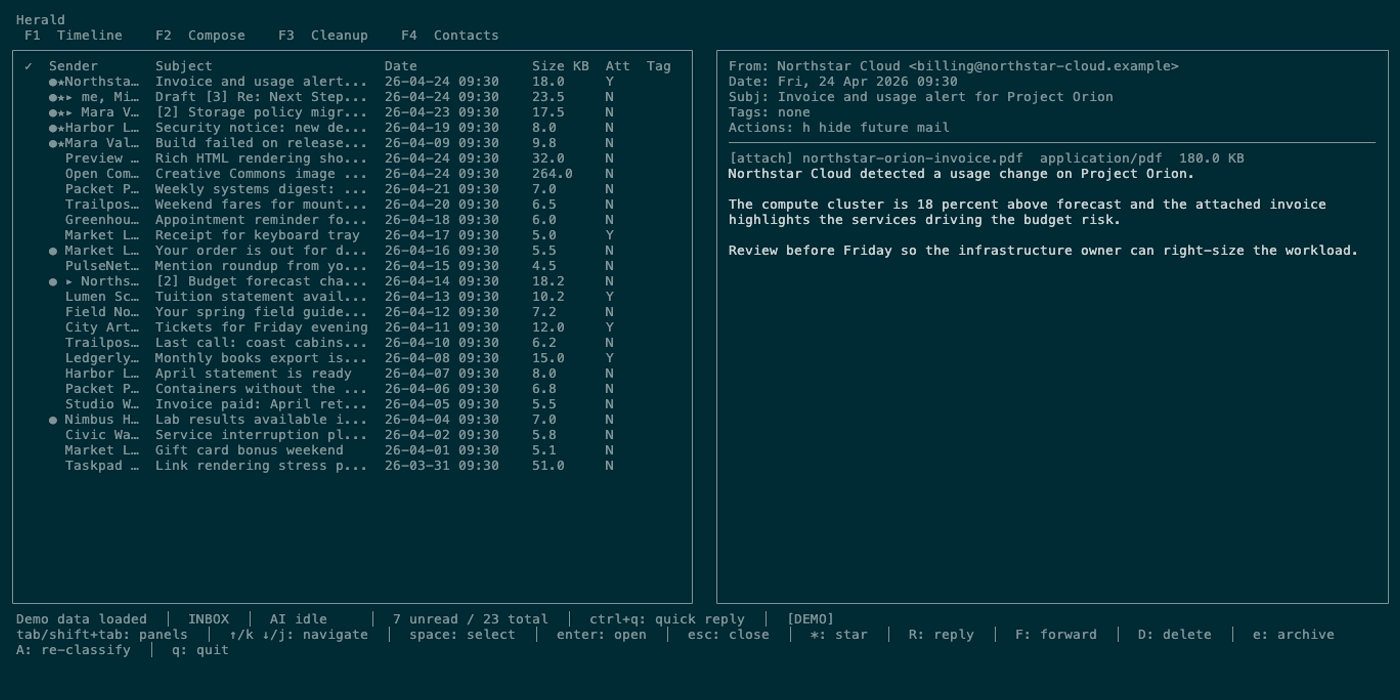
What to notice:
- The selected row stays visible while the preview opens beside it.
- Herald treats
escas a gentle back-out key for previews, search, overlays, and many prompts. - If you get lost, the bottom hints are usually the quickest map back.
3. Ask For Help In Place
Section titled “3. Ask For Help In Place”Press ? from the main interface. Herald opens context-sensitive help for the current tab, panel, overlay, or Compose mode. Press ?, esc, or q to close help.
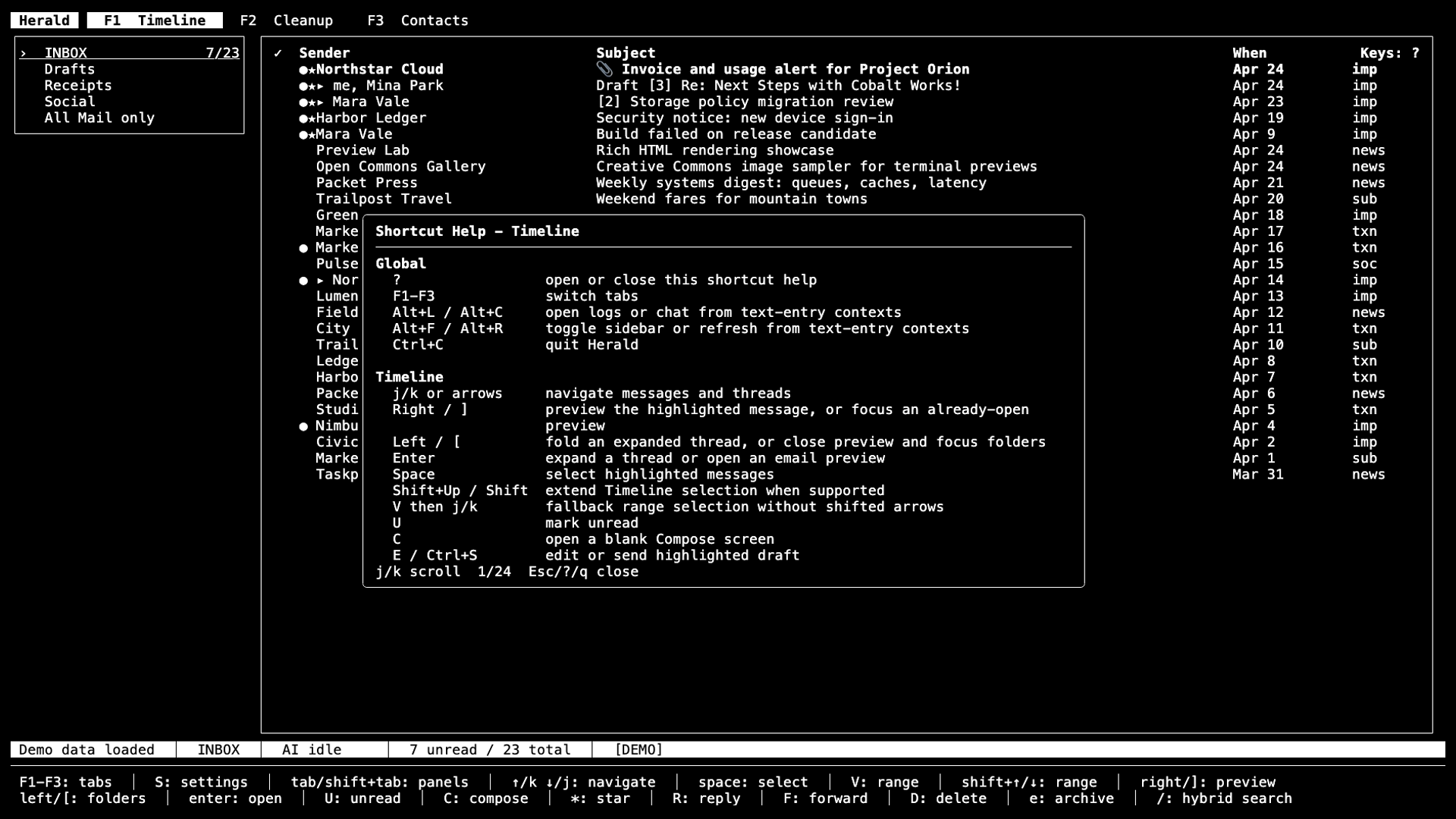
What to notice:
- Help is scoped to where you are, while All Keybindings remains the full reference.
- Text-entry fields keep printable characters. In Compose or search, a literal
?can still be typed when that field owns input. - The visible help and the bottom hints are better first stops than guessing hidden shortcuts.
4. Search The Demo Mailbox
Section titled “4. Search The Demo Mailbox”Press /, type a short word such as calendar or image, then press enter. Use j and k or the mouse to move through results. Press esc to unwind search results and return to the normal Timeline.
What to notice:
- Search starts local and quick while you type.
- Prefixes such as
/bfor cached body search and? queryfor semantic search are available later, but you do not need them for the first pass. - Search, preview, and results each have their own visible hints.
5. Visit Calendar
Section titled “5. Visit Calendar”Press 3 or click the Calendar tab. In demo mode, Calendar is available without configuring a provider. Use w, d, t, or a to switch views after you are comfortable, or simply move through events with j and k.
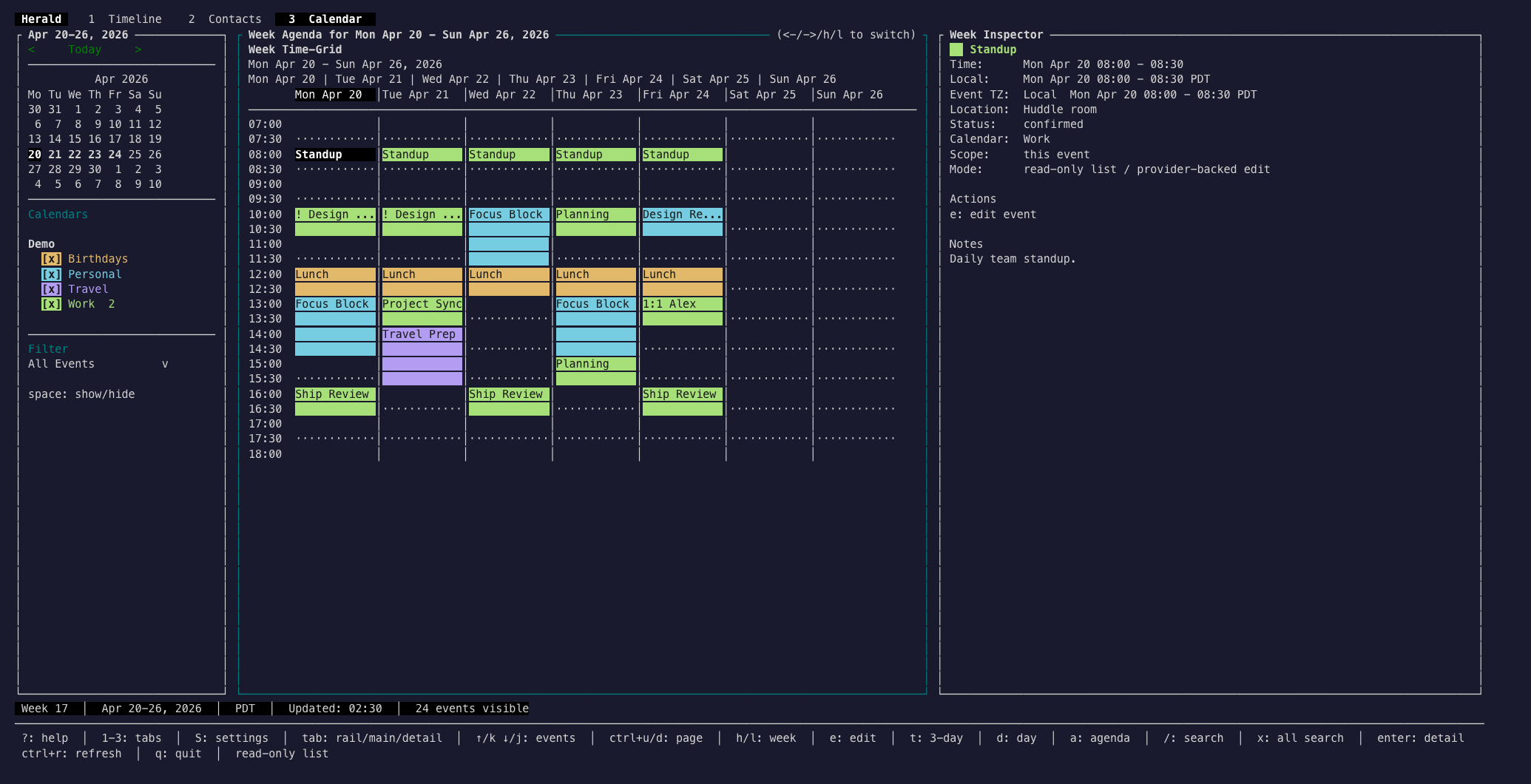
What to notice:
- Calendar keeps Herald’s same chrome: tabs, rail, main panel, detail panel, status, and hints.
- The left rail shows calendar sources and filters when the terminal is wide enough.
- Demo calendar data is synthetic, like demo mail.
6. Open Settings
Section titled “6. Open Settings”Press S from the main interface. Settings opens as a centered overlay over the current screen. Choose a category with enter, move through fields with tab, and press esc to back out without saving unsaved changes.
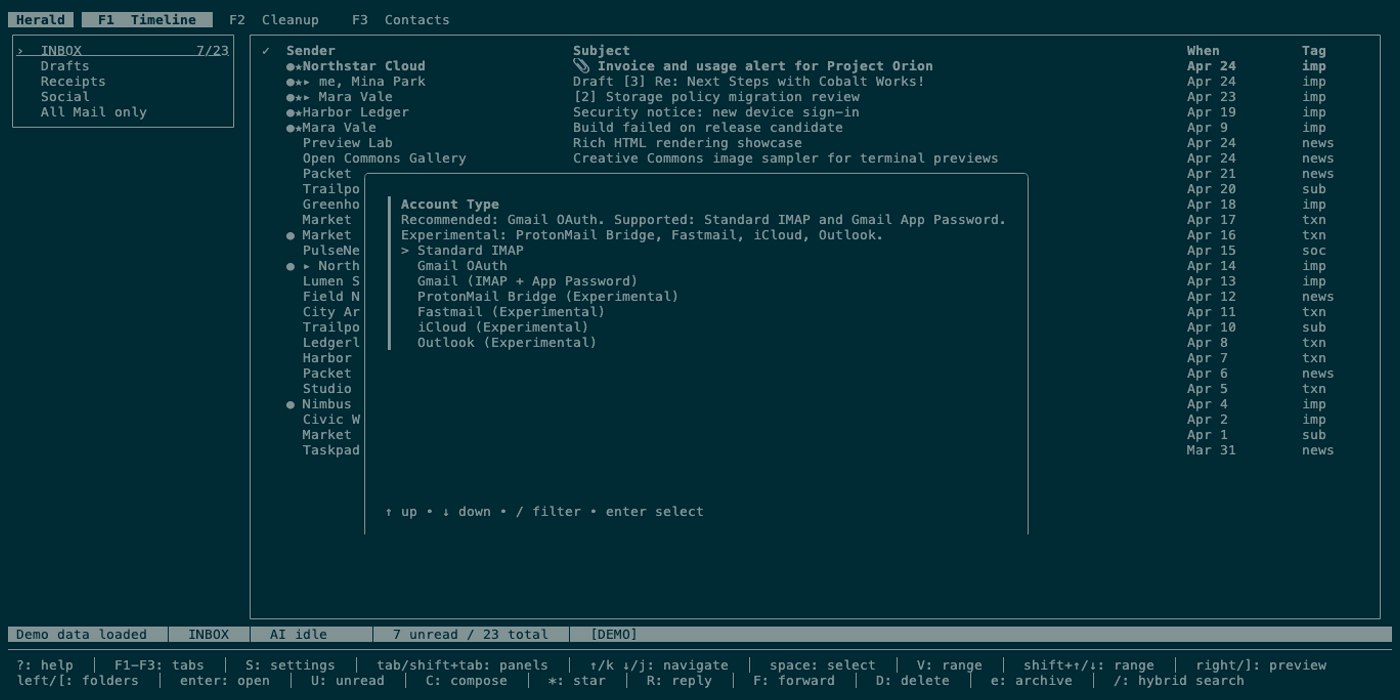
What to notice:
- Settings is grouped by task: accounts, AI, sync and cleanup, keyboard, theme, and signature.
- The overlay preserves the screen behind it, so you can return to the same place.
escbacks out one layer at a time before leaving Settings.
Where To Go Next
Section titled “Where To Go Next”- Demo Mode explains what demo mode includes and how to regenerate demo media.
- Timeline covers reading, previewing, search, attachments, cleanup groups, and replies.
- Calendar covers week, day, 3-day command, agenda, search, RSVP, and event editing.
- Settings covers account setup, AI providers, sync, cleanup, keyboard profiles, themes, and signatures.
- Search explains local, body, cross-folder, semantic, and provider-backed search.
- All Keybindings is the complete command reference once the basics feel familiar.