Text Selection
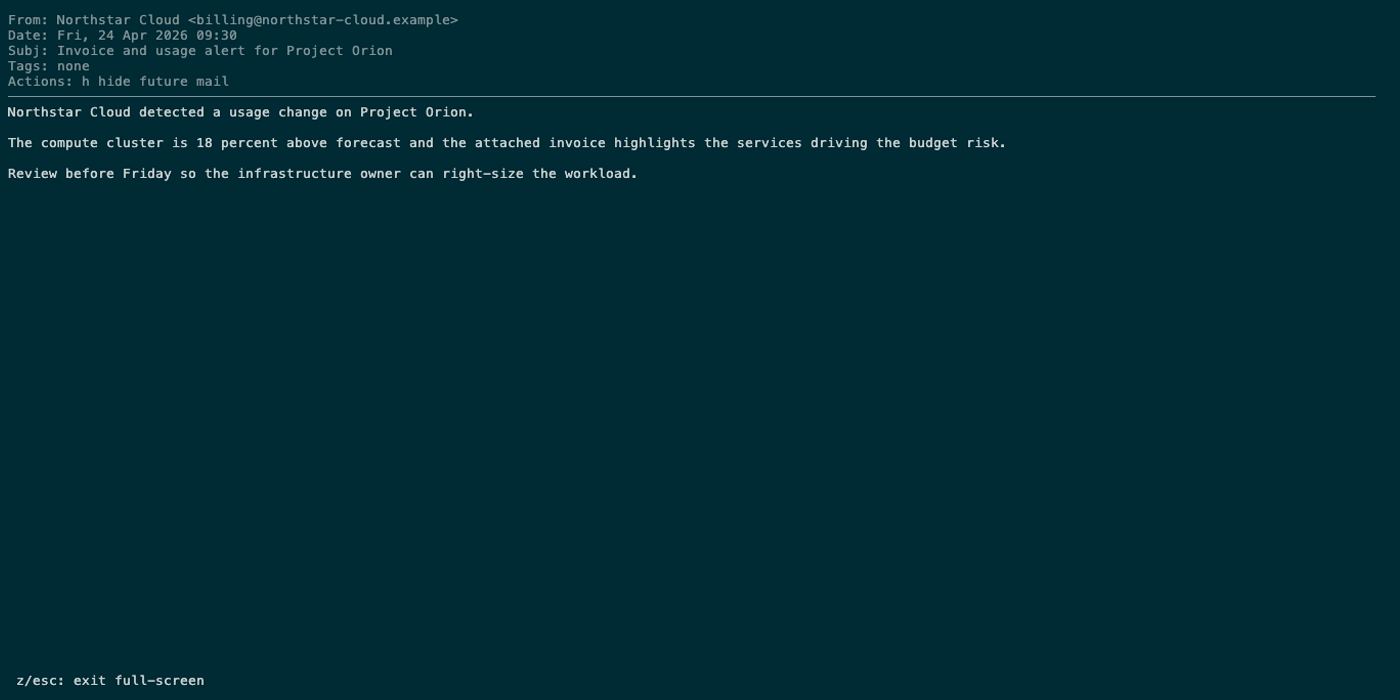
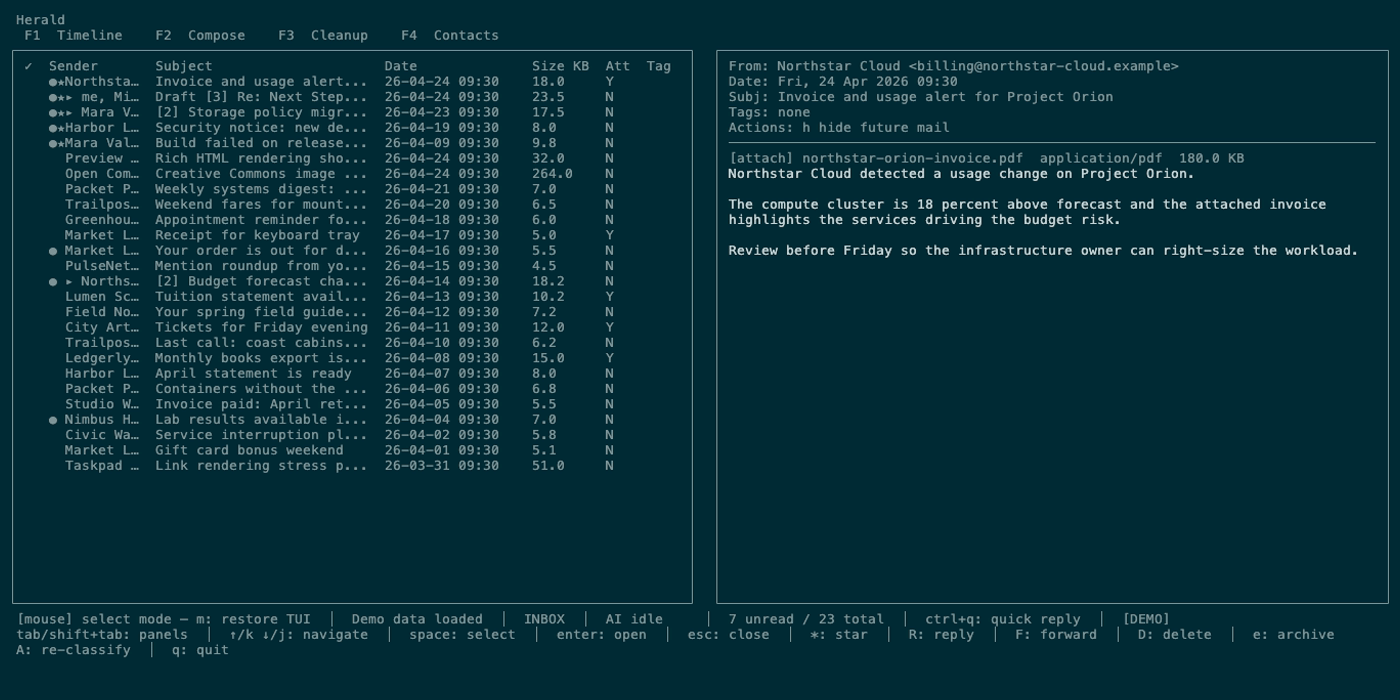
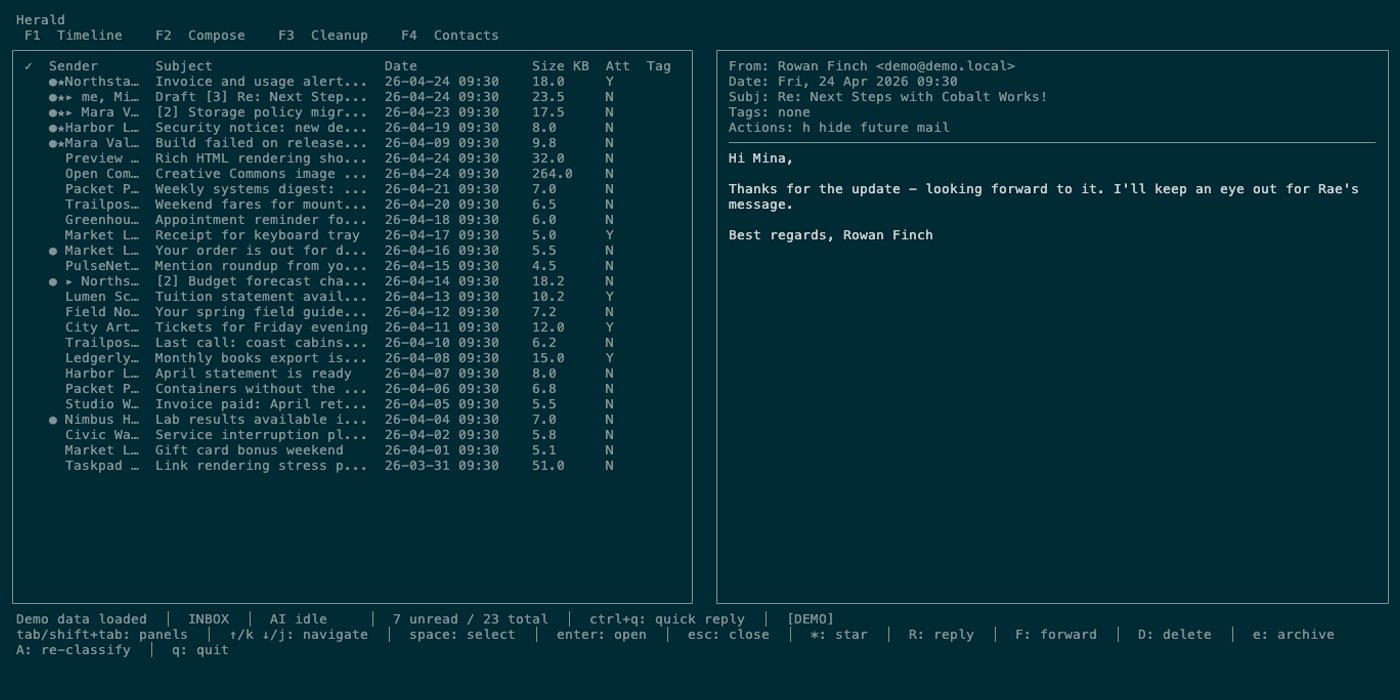
Text selection is available in Timeline preview, Contacts inline previews, and full-screen reading. It gives keyboard-first and mouse-driven copying for a current line, a visual range, or the full wrapped body.
Overview
Section titled “Overview”Use text selection when you need to copy a quote, reference number, address, or full email body without leaving the terminal. Herald-owned selection tracks preview rows directly, so copied payloads can include plain text, rich HTML fragments, or image data where the platform clipboard supports them.
Screen Anatomy
Section titled “Screen Anatomy”| Area | What it shows |
|---|---|
| Wrapped body lines | The preview/full-screen body after Herald wraps text to the current width. |
| Scroll offset | The current top line in the preview body. |
| Cursor selection | The active preview row used for yy line copy and visual-range start. |
| Visual selection | Highlighted range between selection start and end. |
| Mouse drag selection | Herald-owned mouse selection across preview rows when mouse capture is enabled. |
| Pending line copy | A one-key waiting state after the first y. |
| Mouse-selection mode | Terminal mouse mode toggle that changes whether terminal-native selection is easier. |
Controls
Section titled “Controls”| Key | Context | Preconditions | Result |
|---|---|---|---|
v | Timeline preview/full-screen | Wrapped body lines are available. | Toggles visual selection and starts at current scroll line. |
j / down | Visual mode | Visual mode active. | Extends selection downward. |
k / up | Visual mode | Visual mode active. | Shrinks or moves selection upward. |
y | Visual mode | A range is selected. | Copies selected wrapped lines and exits visual mode. |
y then y | Preview/full-screen | Body lines exist and visual mode is not active. | Copies the current visible line. |
Y | Preview/full-screen | Body lines exist. | Copies the entire wrapped body. |
| Mouse drag | Timeline or Contacts preview | Mouse capture is enabled and selectable rows are visible. | Selects the dragged preview range for copy. |
m | Timeline | Any Timeline state. | Toggles mouse-selection mode. |
esc | Visual mode | Visual mode active. | Cancels visual mode. |
Workflows
Section titled “Workflows”Copy a Range
Section titled “Copy a Range”- Open an email preview.
- Scroll to the first line.
- Press
v. - Use
j/kto adjust the range. - Press
y.
Copy the Current Line
Section titled “Copy the Current Line”- Open an email preview.
- Scroll until the desired line is at the current body offset.
- Press
y. - Press
yagain.
Copy the Whole Body
Section titled “Copy the Whole Body”- Open an email preview or full-screen reader.
- Press
Y.
Copy With the Mouse
Section titled “Copy With the Mouse”- Open a Timeline or Contacts preview.
- Drag across the preview text while Herald mouse capture is enabled.
- Press
yto copy the selected range.
Use Terminal Mouse Selection
Section titled “Use Terminal Mouse Selection”- Press
m. - Use your terminal’s native mouse selection.
- Press
magain to return Herald to its normal mouse mode.
States
Section titled “States”| State | What happens |
|---|---|
| No body loaded | Copy keys have nothing to copy. |
| Visual mode | Navigation changes the selected range instead of just scrolling. |
Pending yy | Herald waits for the second y; any other key clears the pending state. |
| Rich clipboard | On supported platforms, Herald writes richer HTML or image payloads along with plain text when the selected preview row carries that data. |
| Full-screen | Same copy controls apply with more body lines visible. |
| Clipboard unavailable | Copy command can fail if the operating system clipboard command is unavailable. |
Data And Privacy
Section titled “Data And Privacy”Text selection reads body text, HTML fragments, and image metadata that are already represented in the preview document and writes selected payloads to the operating system clipboard. The clipboard may be visible to other local applications according to your OS security model.
Troubleshooting
Section titled “Troubleshooting”If copying the wrong line, remember that yy copies the current scroll line, not necessarily the row your cursor highlighted earlier.
If selected text has unexpected wrapping, widen the terminal or use full-screen mode before copying.
If clipboard copy fails, verify the local clipboard command for your platform is installed and available.
Screenshot Placeholders
Section titled “Screenshot Placeholders”