Calendar
Calendar is Herald’s schedule workspace. It uses the same terminal-native chrome as Timeline: top tabs, a left rail, a dense main view, a right inspector or command panel, bottom status, and context-sensitive hints.
Overview
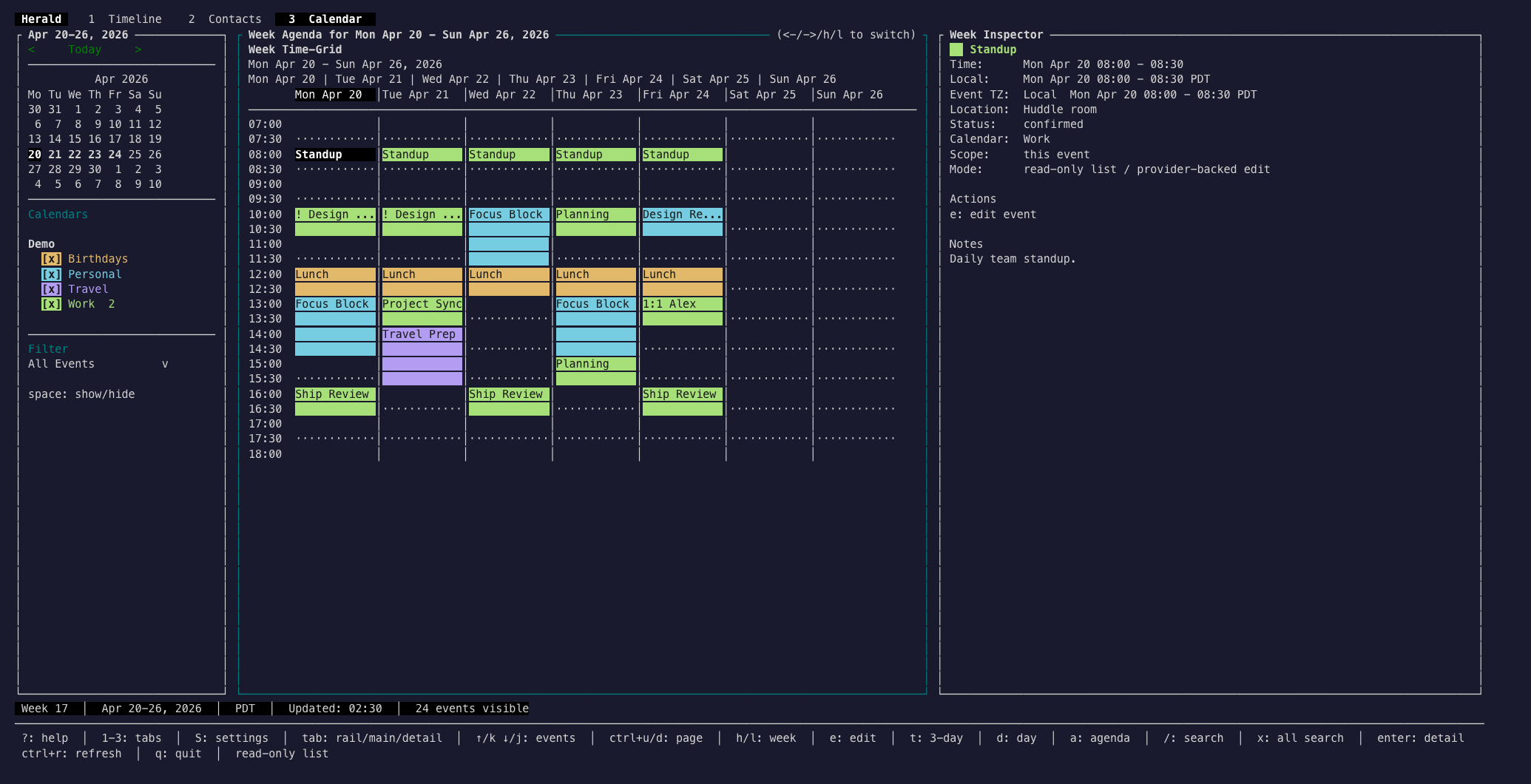
Section titled “Overview”Press 3 or click the 3 Calendar tab to open Calendar when a calendar source is configured or when Herald is running in demo mode. Calendar can show a week time-grid, a focused day agenda, a 3-day command view, agenda/search lists, and event detail. The left rail groups enabled calendars by source, uses colored swatches for each calendar, and lets you filter visible events without exposing provider IDs.
Screen Anatomy
Section titled “Screen Anatomy”| Area | What it shows |
|---|---|
| Calendar rail | Mini month, source groups, colored calendar swatches, enabled/disabled state, visible counts, and filter scope. |
| Week Time-Grid | Seven days of timed events with half-hour guide rows, selected event focus, RSVP markers, and source colors. |
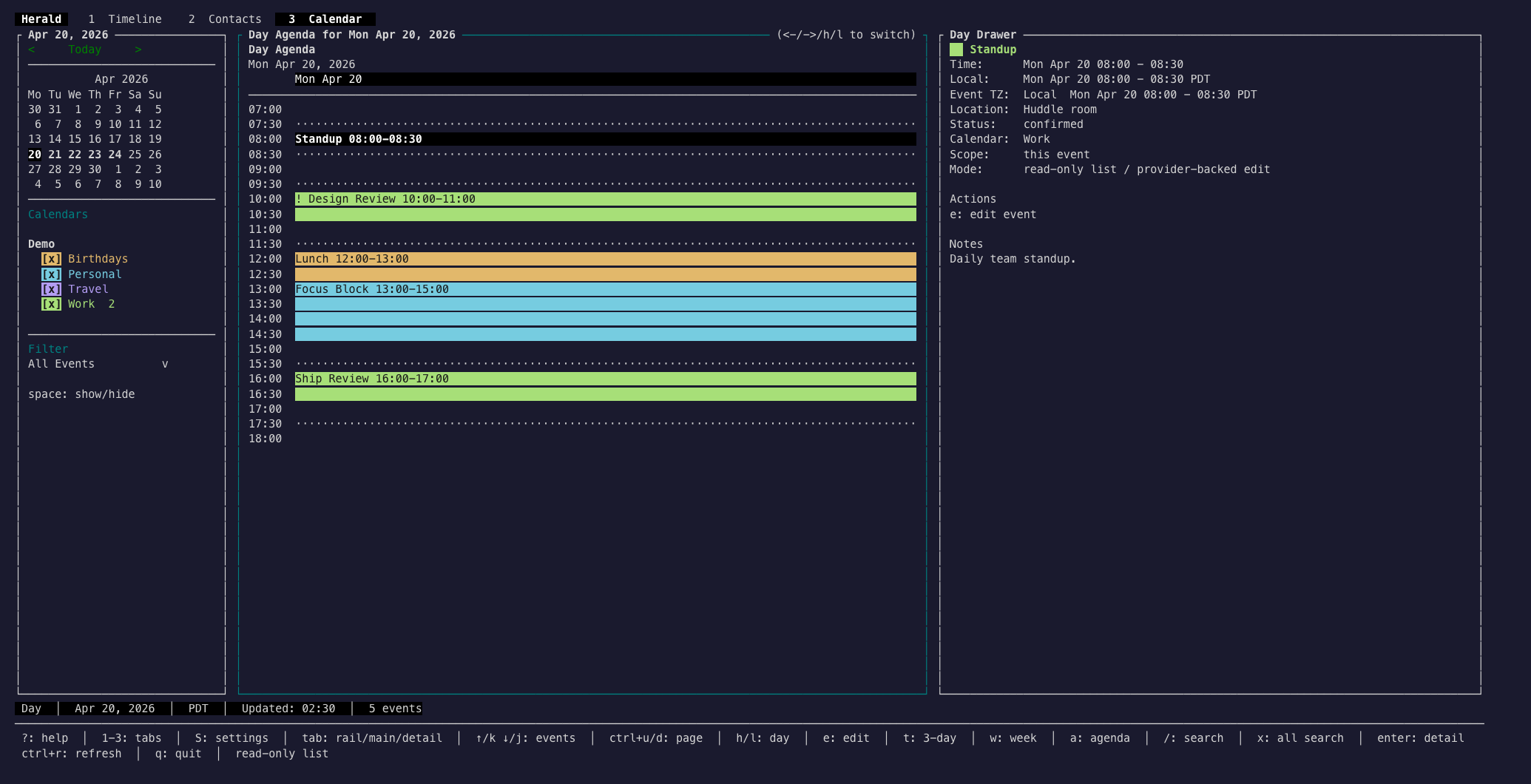
| Day Agenda | One selected day with full-width timed event rows and a persistent detail drawer. |
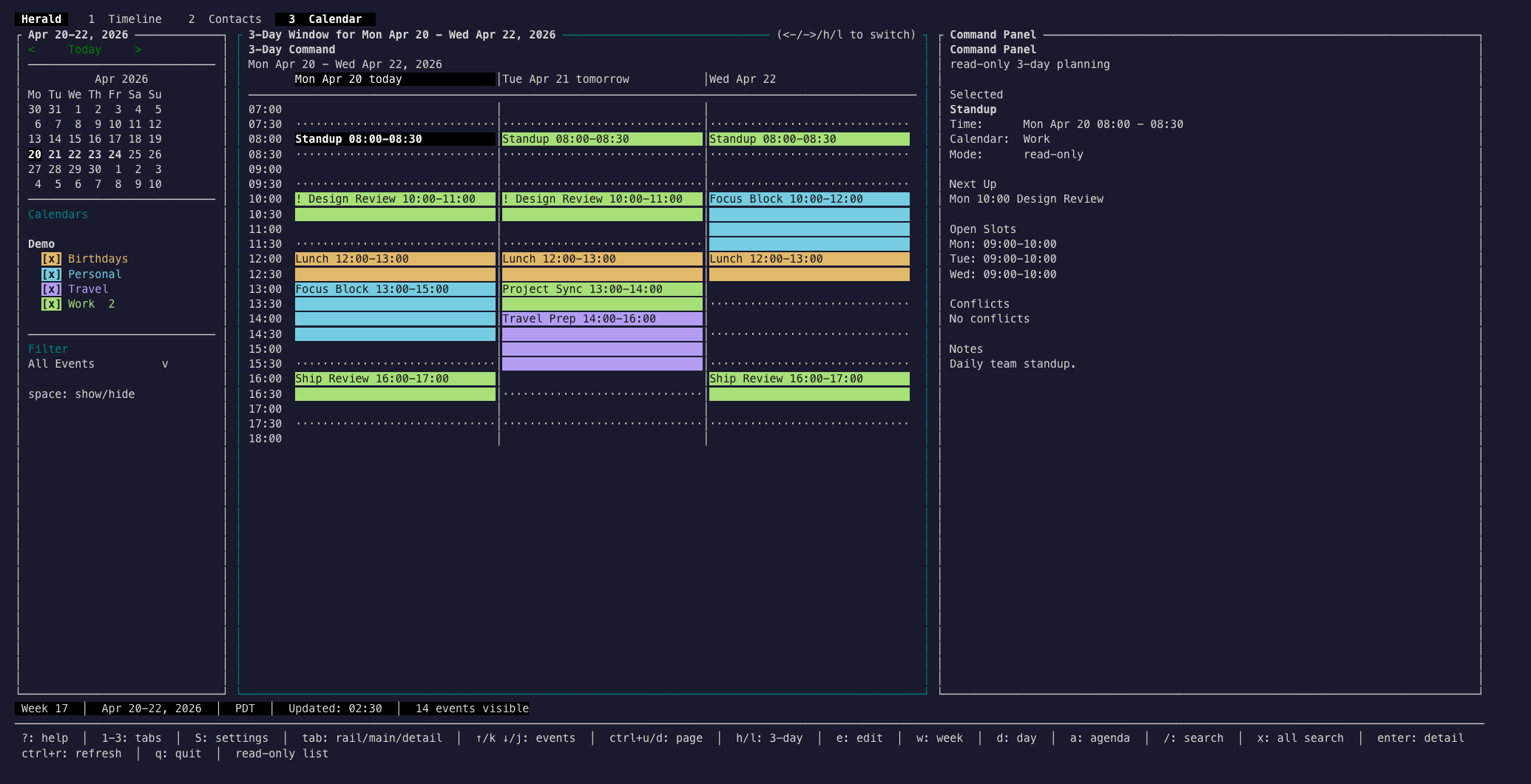
| 3-Day Command | Today, tomorrow, and the next day with a command panel for selected event, next-up, open slots, and conflicts. |
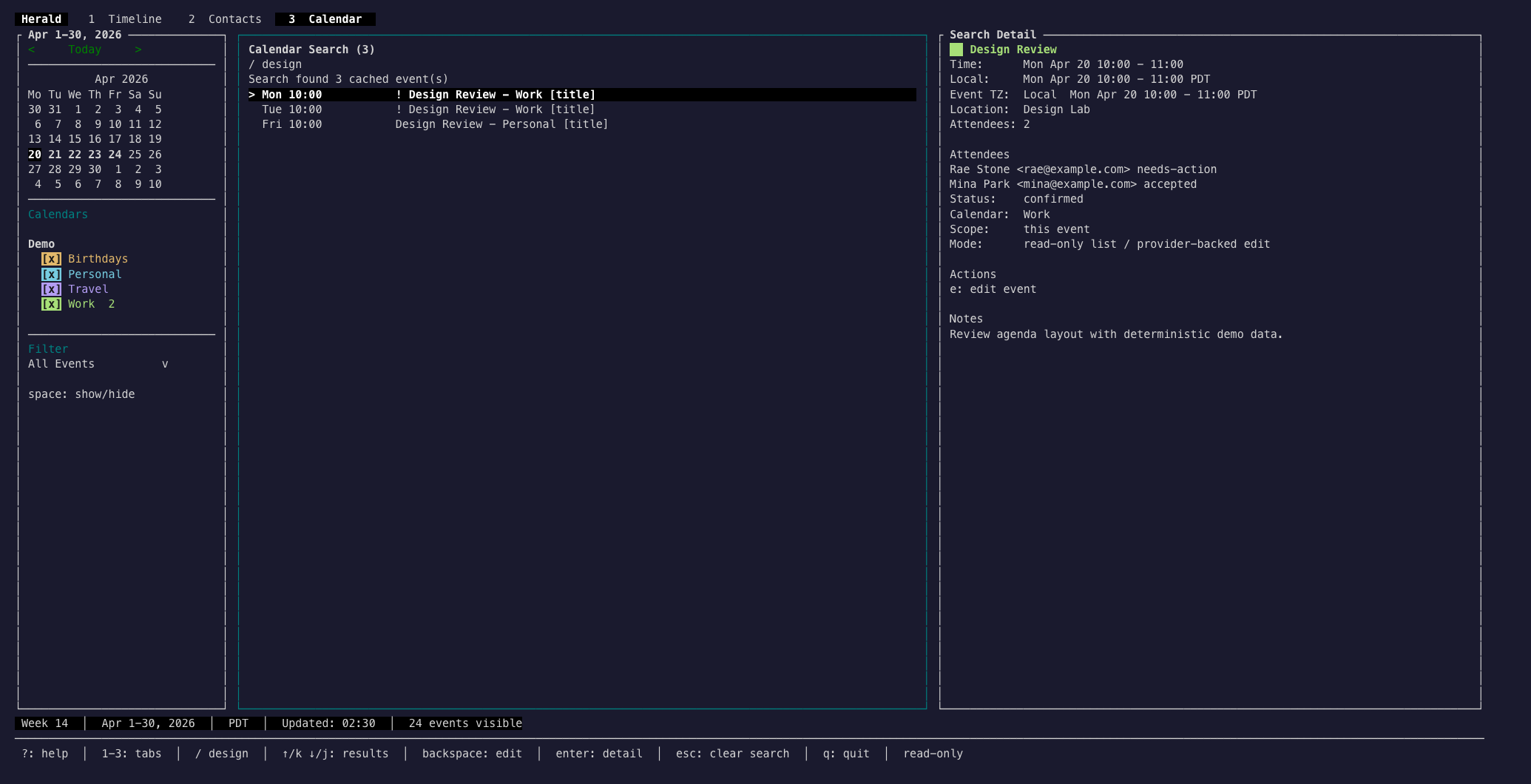
| Agenda/Search list | Compact cached event rows with source labels, RSVP markers, and a detail panel. |
| Event detail | Time, local/event timezone, location, attendees, RSVP state, recurrence, attachments, notes, and available actions. |
Week Time-Grid
Section titled “Week Time-Grid”Week view is the spatial planning view. Use it to spot dense days, open blocks, conflicts, and events requiring a response.
Day Agenda
Section titled “Day Agenda”Day view narrows the schedule to one day while keeping the selected event drawer visible.
3-Day Command
Section titled “3-Day Command”The 3-day command view bridges today, tomorrow, and the following day. Its side panel summarizes next-up context, open slots, and conflicts for the current enabled calendar scope.
Calendar Search
Section titled “Calendar Search”Calendar search is cache-backed and searches event titles, notes, locations, organizers, attendees, recurrence, attachments, and source labels while keeping provider internals hidden.
Controls
Section titled “Controls”| Key | Context | Preconditions | Result |
|---|---|---|---|
3 | Main UI | Calendar is available. | Opens Calendar. |
tab / shift+tab | Calendar | Multiple panels are visible. | Cycles focus between rail, main view, and detail/command panel. |
j / down | Calendar main panel | Events are visible. | Moves to the next visible event, crossing day boundaries where useful. |
k / up | Calendar main panel | Events are visible. | Moves to the previous visible event. |
left / right | Calendar main panel | A date-ranged view is active. | Moves to the previous or next day, week, or 3-day range. h/l remain aliases. |
w | Calendar | Any calendar view. | Switches to Week Time-Grid. |
d | Calendar | Any calendar view. | Switches to Day Agenda. |
t | Calendar | Any calendar view. | Switches to 3-Day Command. |
a | Calendar | Any calendar view. | Switches to Agenda List. |
/ | Calendar | Calendar search is closed. | Opens Calendar Search. |
x | Calendar | Cross-source search is available. | Opens blended mail-and-calendar search. |
enter | Calendar event | An event is selected. | Opens full event detail. |
ctrl+n / n | Calendar default profile | A writable calendar source exists. | Opens Event Create, using the selected writable calendar or a safe writable fallback. |
n | Calendar Emacs profile | A writable calendar source exists. | Opens Event Create; ctrl+n keeps its Emacs movement meaning. |
e | Calendar event | The selected source supports editing. | Opens Event Edit. |
delete / D | Calendar event | The selected source supports deletion. | Opens Event Delete confirmation. |
y / m / n | RSVP action picker | Selected event supports RSVP. | Accepts, tentatively accepts, or declines. |
space | Calendar rail | Rail has focus. | Shows or hides the highlighted calendar. |
p | Agenda | Hidden past events exist. | Shows or hides past agenda rows. |
esc | Calendar detail, search, or edit | A transient state is active. | Returns to the prior Calendar view without losing range and selection. |
m | Calendar | Mouse capture is active. | Releases or restores Herald mouse capture so terminal-native text selection can be used. |
Mouse Workflows
Section titled “Mouse Workflows”Calendar is designed to be usable with keyboard or mouse. Click the Calendar tab, click mini-month days to move the active range, click events to select them, double-click a selected event to open detail, click calendar checkboxes/swatches in the rail to show or hide calendars, and scroll list-style calendar surfaces with the mouse wheel.
Workflows
Section titled “Workflows”Scan The Week
Section titled “Scan The Week”- Press
3. - Press
wfor Week Time-Grid. - Use left/right arrows to move week ranges;
h/lstill work. - Use
j/kto move through events. - Read the inspector for timezone, RSVP, location, and notes context.
Focus On Today
Section titled “Focus On Today”- Press
d. - Use left/right arrows to move between days;
h/lstill work. - Move through the day’s rows with
j/k. - Press
enterwhen the drawer is not enough and you need full event detail.
Plan The Next Three Days
Section titled “Plan The Next Three Days”- Press
t. - Review the command panel’s selected-event, next-up, open-slot, and conflict sections.
- Use left/right arrows to slide the 3-day window;
h/lstill work. - Press
w,d, orato jump into another Calendar view with the same event context.
Search Events
Section titled “Search Events”- Press
/. - Type a query such as
design. - Press
enter. - Move through results with
j/k. - Read the detail panel, or press
enterfor the full event reader.
Create or Edit an Event
Section titled “Create or Edit an Event”- In the default profile, press
ctrl+nornto create a new event. In the Emacs profile, pressnbecausectrl+nremains movement. Select an event and presseto edit. - Move through fields with
taband edit title, time, timezone, attendees, reminders, recurrence, and notes. - Use picker fields for dates, timezones, attendees, recurrence, and reminders when they open.
- Save the form to write through the provider first; failed provider writes keep the unsaved edit visible.
Import an Invitation From Mail
Section titled “Import an Invitation From Mail”- Open Timeline and preview an email with
text/calendaror.icsinvitation data. - Press
i. - Choose a writable calendar when Herald shows the picker.
- Press
enterto create or update the event,sto skip a duplicate, orescto cancel.
States
Section titled “States”| State | What happens |
|---|---|
| Calendar unavailable | Mail-only sessions do not advertise the Calendar tab. Add a calendar source from Settings or use demo mode to explore it. |
| Loading | Calendar shows cached data when available while the provider refresh continues. |
| Rail filtering | Disabled calendars immediately disappear from the visible event set while date range and selection are preserved when possible. |
| Read-only source | Events remain readable, but mutation and RSVP actions are hidden or disabled with a clear reason. |
| Provider-backed edit | Event edits write through Google Calendar or CalDAV first, then update the cache only after provider success. |
| Provider-backed create/delete | Event create and delete write through Google Calendar or CalDAV before adding or removing cached rows. |
| Conflict or unsupported recurrence | Herald keeps the edit/error visible and does not rewrite cached event rows on failed provider writes. |
| Narrow terminal | Calendar collapses to a compact layout or the global minimum-size guard instead of clipping columns. |
Data And Privacy
Section titled “Data And Privacy”Calendar reads cached event metadata, notes, attendees, reminders, recurrence, attachments, and source labels from configured calendar sources. Provider IDs, CalDAV URLs, Google event IDs, sync tokens, and internal scoped refs stay out of the TUI. Event edits, RSVP changes, and invitation imports can write to the selected provider-backed calendar source.
Troubleshooting
Section titled “Troubleshooting”If Calendar is missing, open Settings > Accounts and choose Add calendar only, or run ./bin/herald --demo to see the deterministic demo calendar.
If a view looks empty, check the mini month, range header, enabled calendars in the rail, and whether Agenda has hidden past rows. Search still looks across cached events even when the current date range has no visible rows.