Attachments
Herald supports attachments in both reading and writing flows. Timeline detects and saves received attachments; Compose reads local files and sends them with outgoing mail.
Overview
Section titled “Overview”Use Timeline preview attachment controls when receiving files. Use Compose ctrl+a when sending files. Attachment behavior depends on message MIME structure, local file paths, and provider message-size limits.
Screen Anatomy
Section titled “Screen Anatomy”| Area | What it shows |
|---|---|
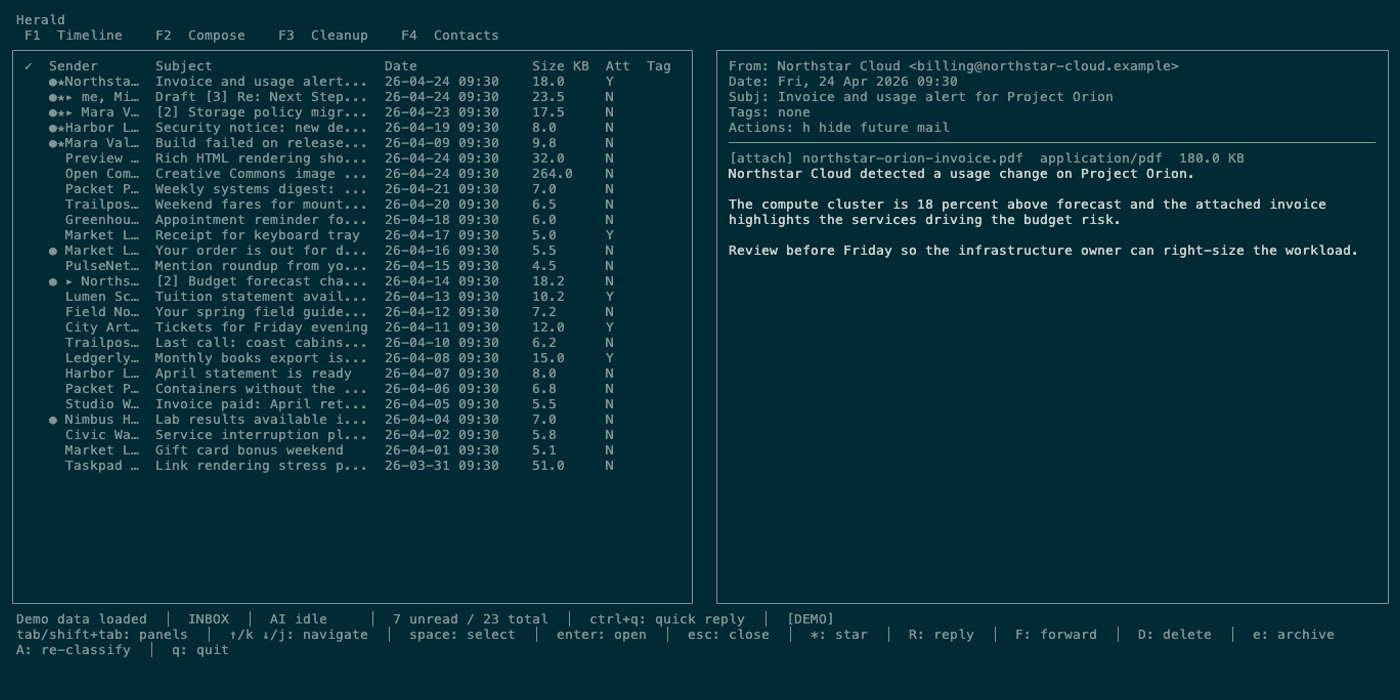
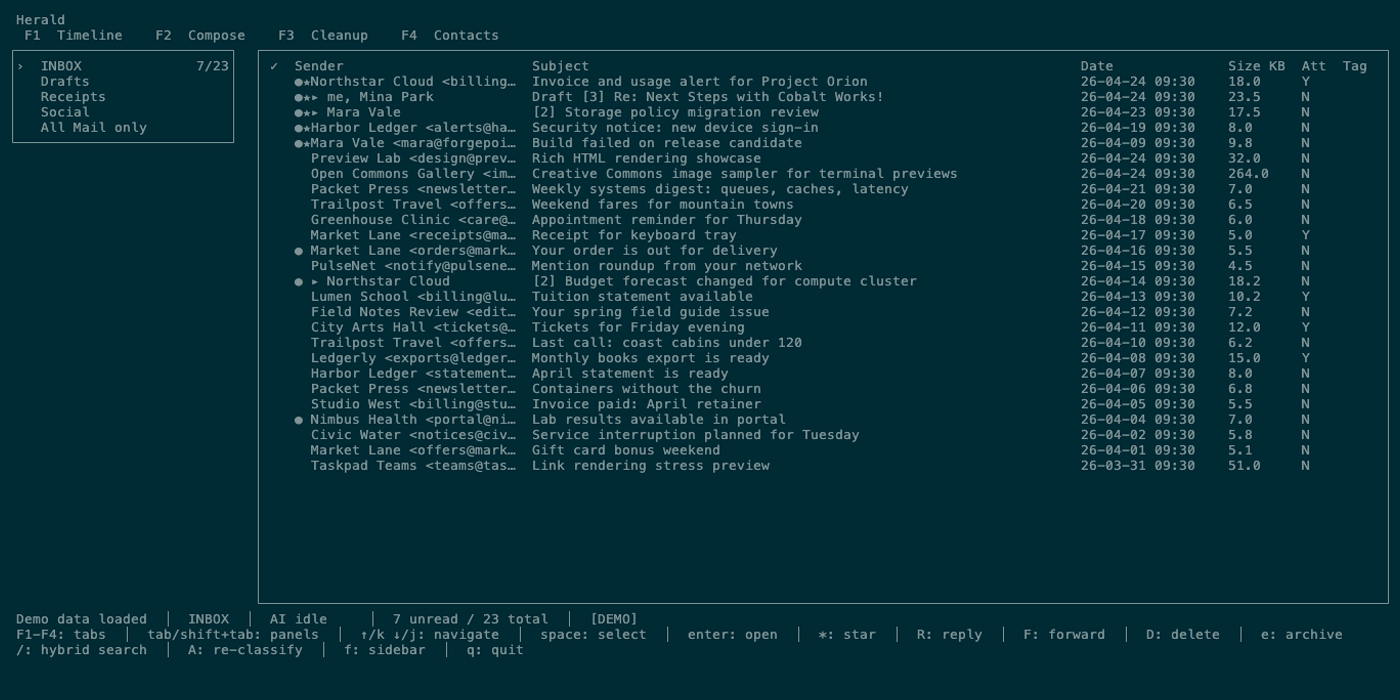
| Timeline subject marker | Attachment marker beside the subject for messages or collapsed threads whose structure includes attachments. |
| Preview attachment area | Attachment list, selected attachment, filename, and save affordance. |
| Attachment save prompt | Destination path input, defaulting to ~/Downloads/<filename>. |
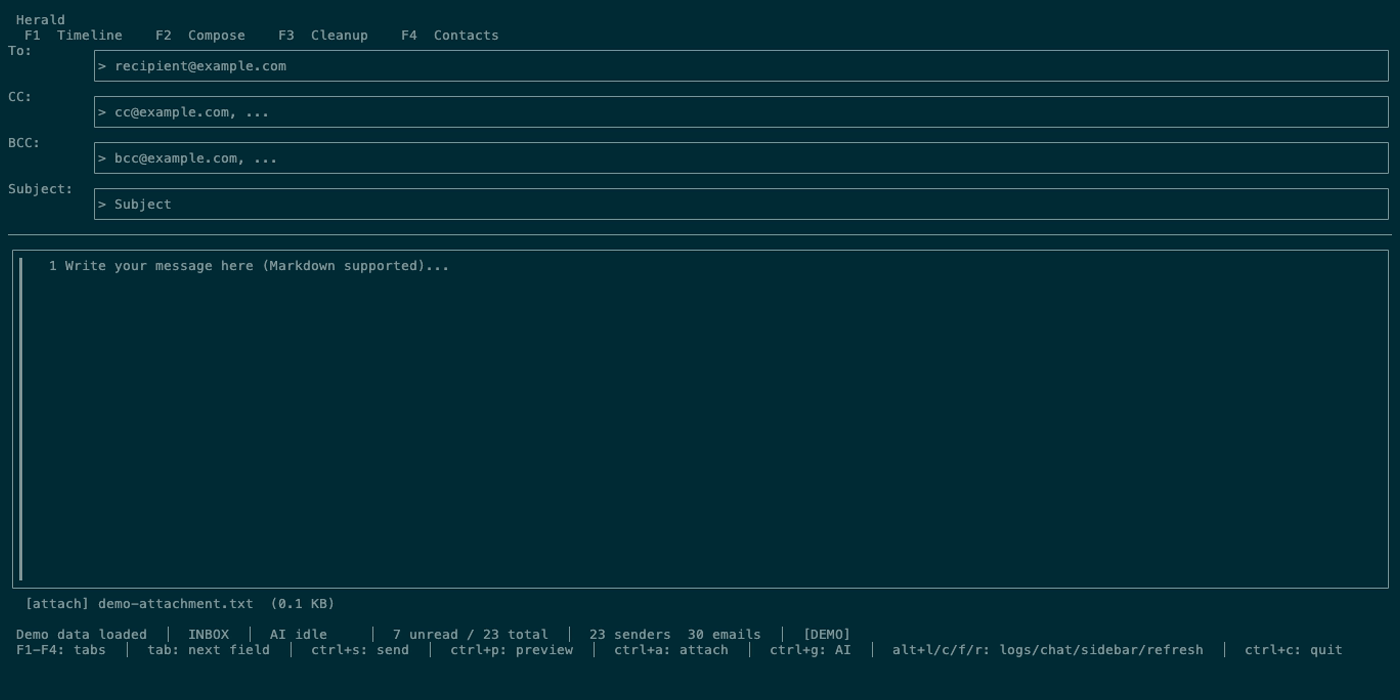
| Compose attachment prompt | File path input opened with ctrl+a. |
| Compose attachment lines | Files attached to the outgoing draft. |
| Compose status | Attachment add errors, large-file warnings, and send errors. |
Controls
Section titled “Controls”| Key | Context | Preconditions | Result |
|---|---|---|---|
enter | Timeline row | Message selected. | Opens preview and fetches body/attachment metadata. |
[ | Timeline preview | More than one attachment and selected index greater than zero. | Selects previous attachment. |
] | Timeline preview | More than one attachment and selected index is not last. | Selects next attachment. |
s | Timeline preview | Preview focused and attachments exist. | Opens save prompt. |
enter | Save prompt | Save prompt active. | Saves selected attachment to the entered path. |
esc | Save prompt | Save prompt active. | Cancels save prompt. |
ctrl+a | Compose | Compose active. | Opens outgoing attachment path prompt. |
enter | Compose attachment prompt | Prompt active. | Adds the local file path to the draft. |
esc | Compose attachment prompt | Prompt active. | Cancels outgoing attachment entry. |
Workflows
Section titled “Workflows”Save a Received Attachment
Section titled “Save a Received Attachment”- Open Timeline.
- Select a message with the attachment marker beside the subject.
- Press
enterto open preview. - Use
[/]if multiple attachments are present. - Press
s. - Confirm or edit the destination path.
- Press
enter.
Attach a File to Outgoing Mail
Section titled “Attach a File to Outgoing Mail”- Open Compose.
- Press
ctrl+a. - Enter a file path.
- Press
enter. - Confirm the attachment appears in the draft.
- Send with
ctrl+s.
States
Section titled “States”| State | What happens |
|---|---|
| No attachments | s, [, and ] do not change anything. |
| Multiple attachments | Selected attachment index changes with [ and ]. |
| Save prompt active | Normal Timeline keys are paused until save prompt completes or cancels. |
| Save error | Status reports backend or filesystem error. |
| Large outgoing file | Compose can warn when a file is large. |
| Missing outgoing file | Compose reports add/send failure if the path cannot be read. |
| Provider size limit | SMTP provider can reject large messages after Herald builds them. |
Data And Privacy
Section titled “Data And Privacy”Saving an attachment writes a file to the local destination path. Adding an outgoing attachment reads the local file and sends it over SMTP with the message. Attachment metadata is derived from the parsed email body and cached message state.
Troubleshooting
Section titled “Troubleshooting”If the subject marker is absent but you expected attachments, the provider may not expose attachment disposition in the fetched structure.
If saving fails, check path permissions and whether the filename already exists with restrictive permissions.
If sending fails with attachments, reduce file size or verify SMTP provider limits.
Screenshot Placeholders
Section titled “Screenshot Placeholders”