Chat Panel
The chat panel lets you ask questions about the currently loaded mailbox context. Configured AI routes chat through the Gollem UI chat-agent path with read-only email and memory tools plus typed Timeline, summary, and Compose review intents.
Overview
Section titled “Overview”Press g from the main UI to open chat. The legacy c alias still works outside Timeline text and compose contexts. Chat is available when Herald is not loading, AI is configured, and the terminal is wide enough to render the main view beside the chat panel.
Screen Anatomy
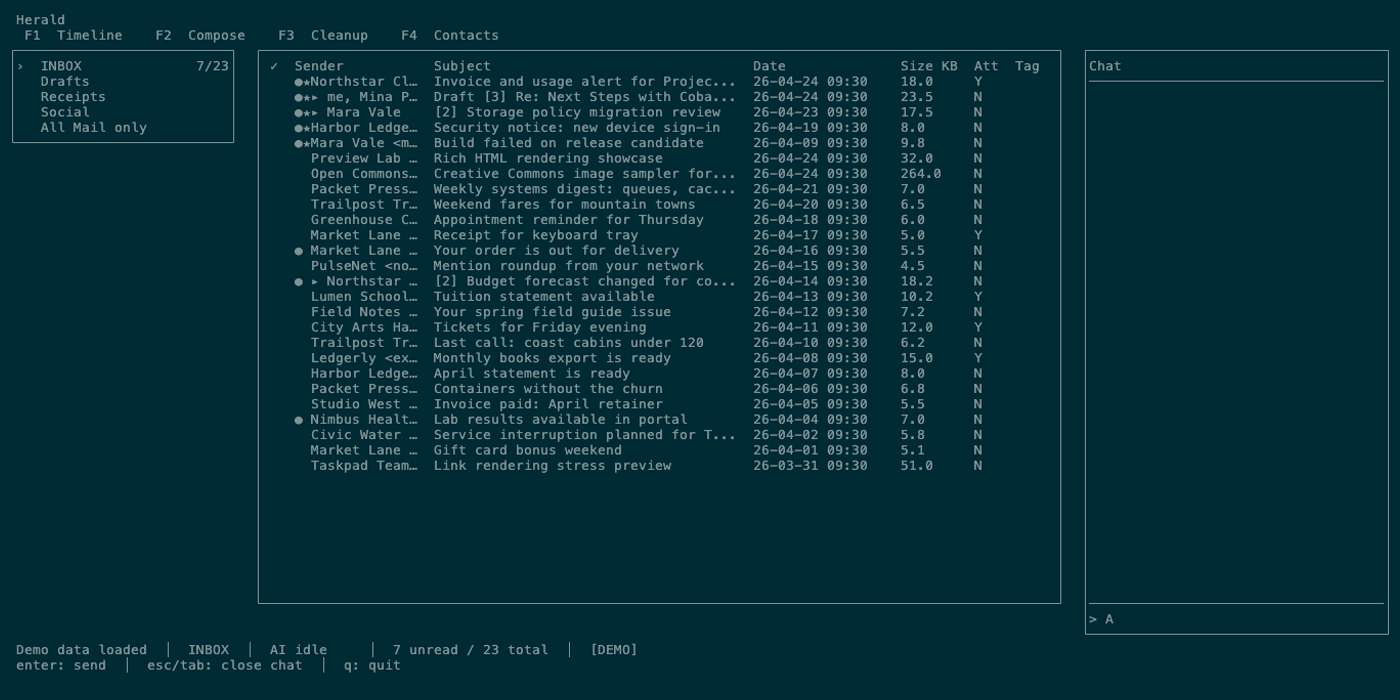
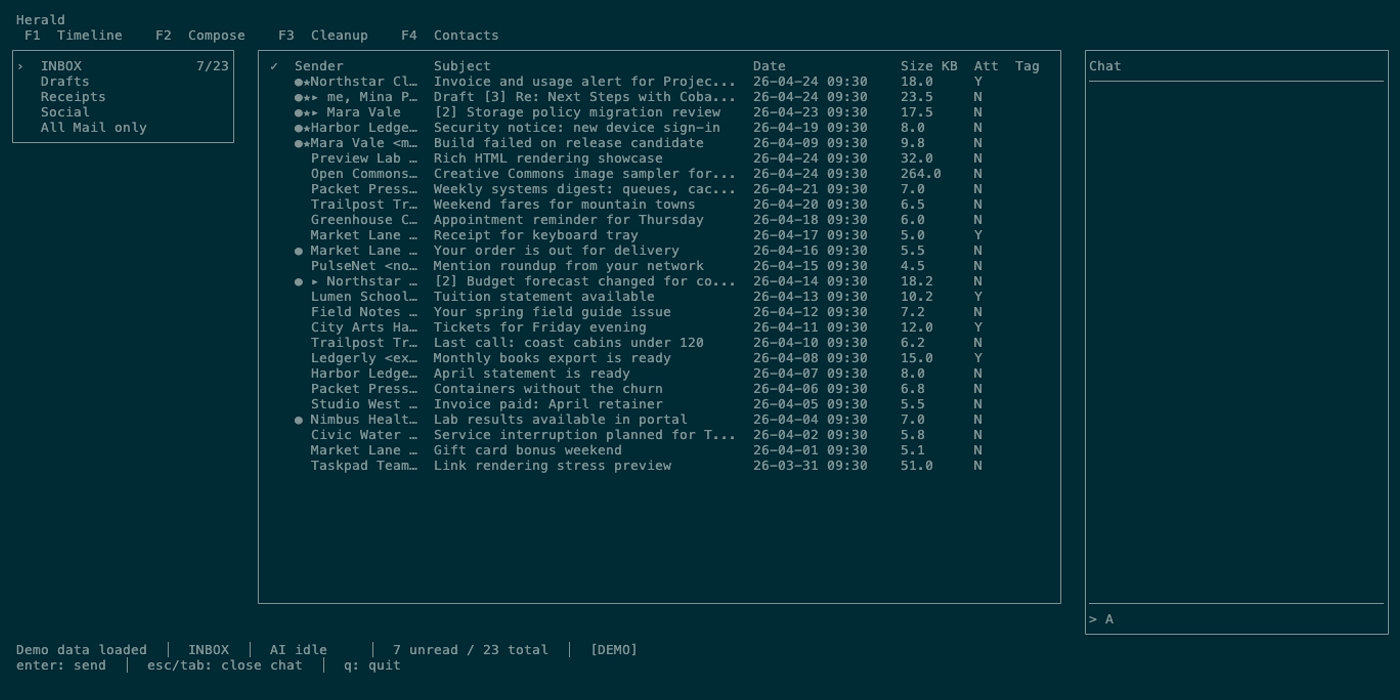
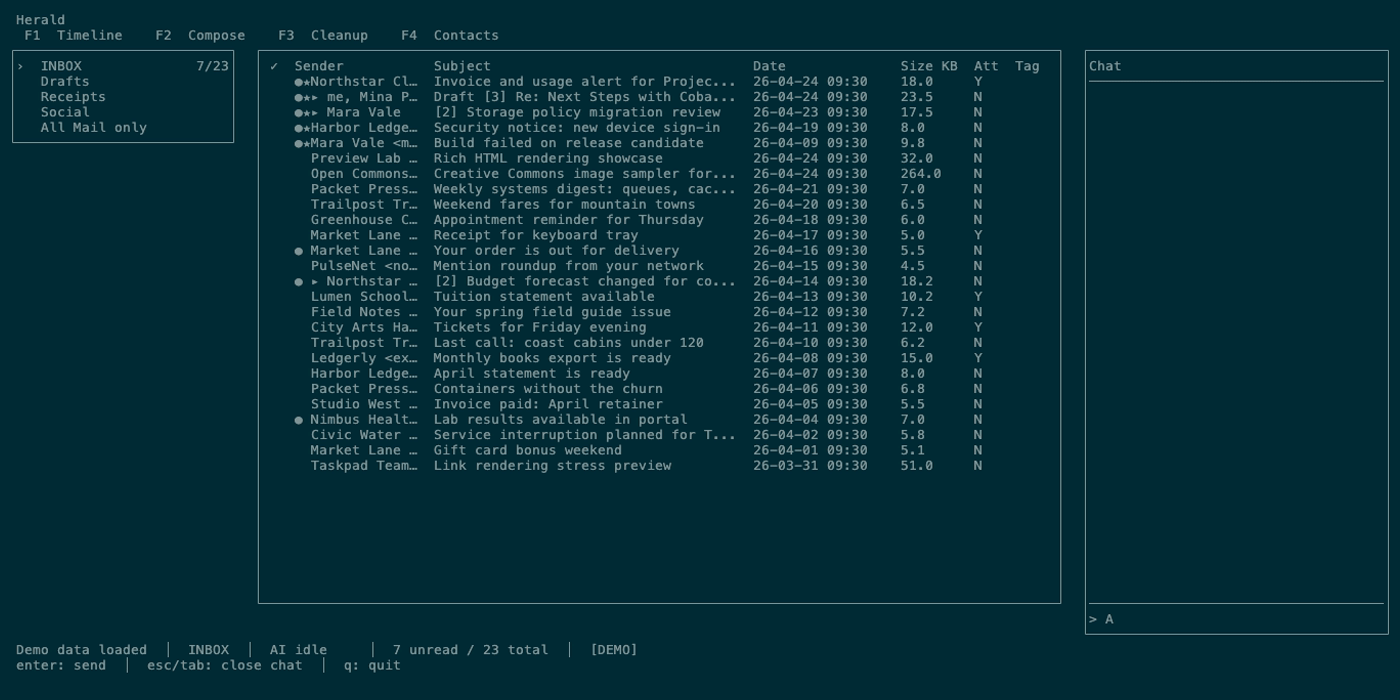
Section titled “Screen Anatomy”| Area | What it shows |
|---|---|
| Chat title | Right-side panel title. |
| History | User and assistant messages from the current chat session. |
| Tool-derived answers | Assistant responses that may summarize read-only search, context, people, or sender-stat tool output. |
| Memory-aware answers | Source-backed contact history, company tracks, open loops, related replies, and reply-prep context when Herald Memories are available. |
| Input | One-line chat input. |
| Waiting state | Chat stops accepting new submit actions while the assistant is responding. |
| Timeline filter | Assistant can return typed results that narrow Timeline to matching message IDs or route through existing Timeline search. |
Controls
Section titled “Controls”| Key | Context | Preconditions | Result |
|---|---|---|---|
g | Main UI | Not loading and width allows chat. | Opens chat and focuses input; pressing again closes it. |
c | Main UI | Legacy alias outside Timeline text and compose contexts. | Opens chat and focuses input; pressing again closes it. |
enter | Chat input | Chat is focused and not waiting. | Sends the current message. |
esc | Chat focused | Chat is open. | Closes chat and restores default panel focus. |
tab | Chat focused | Chat is open. | Leaves/closes chat focus and returns to default panel focus. |
q | Any chat state | Any state. | Quits Herald. |
Workflows
Section titled “Workflows”Ask a Mailbox Question
Section titled “Ask a Mailbox Question”- Open Timeline or Cleanup.
- Press
g. - Ask a specific question such as “show recent invoices” or “which senders have the most unread mail?”
- Press
enter. - Read the answer and any applied filter state.
Use Timeline Results
Section titled “Use Timeline Results”- Ask a question that implies a filtered set of messages.
- If the assistant returns typed Timeline results, Timeline switches into a filtered view or opens the existing search pipeline.
- Navigate and open messages normally.
- Press
escin Timeline to clear the chat filter.
Review A Compose Suggestion
Section titled “Review A Compose Suggestion”- Open Compose and draft some text.
- Open chat with
gand ask for a rewrite or subject suggestion. - If the agent returns a Compose suggestion, Herald opens the existing Compose AI review panel with the suggestion.
- Accept, reject, or edit the suggestion from the review panel; the draft is not silently changed.
States
Section titled “States”| State | What happens |
|---|---|
| Width too small | Pressing c reports that chat is hidden at this size. |
| AI unavailable | Chat cannot produce assistant responses. |
| Waiting | Input remains visible, but enter does not submit another message until the current response finishes. |
| Provider or tool error | Herald shows a bounded assistant error and clears the waiting state. |
| Timeline filter active | Status indicates a filtered Timeline; esc clears it. |
| AI disabled | Explicit ai.provider: disabled keeps chat unavailable instead of falling back to a legacy runtime. |
| Compose suggestion outside Compose | Herald shows an Open Compose notice and does not open the review panel. |
Data And Privacy
Section titled “Data And Privacy”Chat sends the user’s question, current folder, and bounded UI context to the configured AI backend. Read-only tools can search cached email metadata and fetch bounded body snippets by message ID; external providers receive the chat prompt and any tool results needed to answer. The first Gollem iteration cannot send, delete, archive, or mutate calendar events.
Memory tools read local Herald Memories only. They can distinguish email-backed, Obsidian-backed, research-backed, and inferred context when those sources are present.
Troubleshooting
Section titled “Troubleshooting”If c does not open chat, widen the terminal or wait until loading completes.
If answers ignore recent messages, refresh the folder with r and try again.
If a filter hides too much, press esc in Timeline to clear the filter.
Screenshot Placeholders
Section titled “Screenshot Placeholders”