Sync and Status
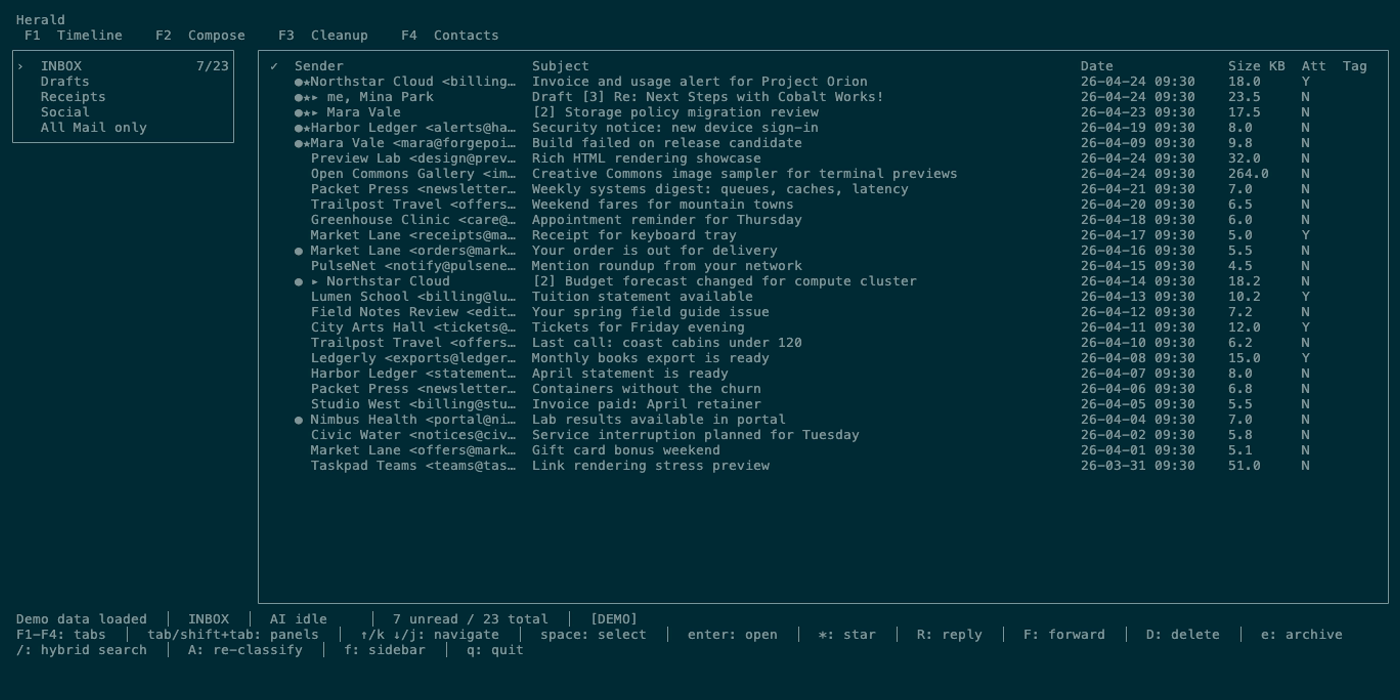
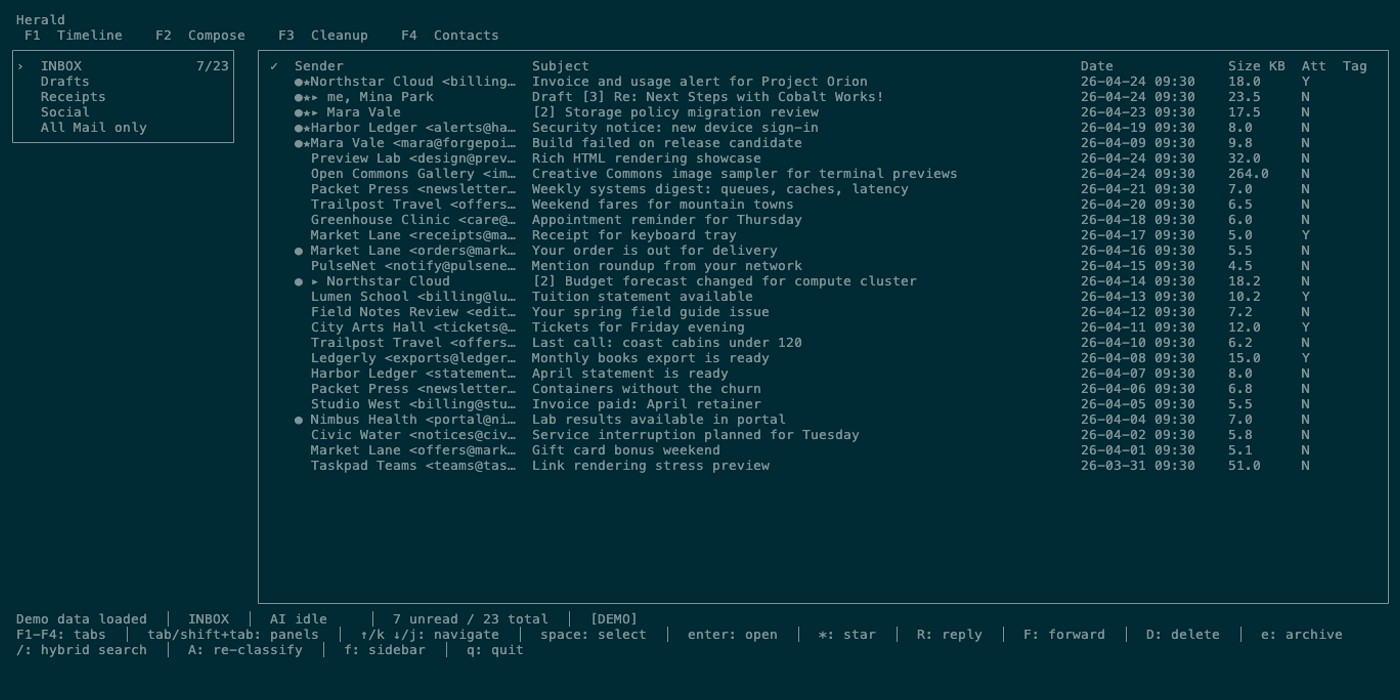
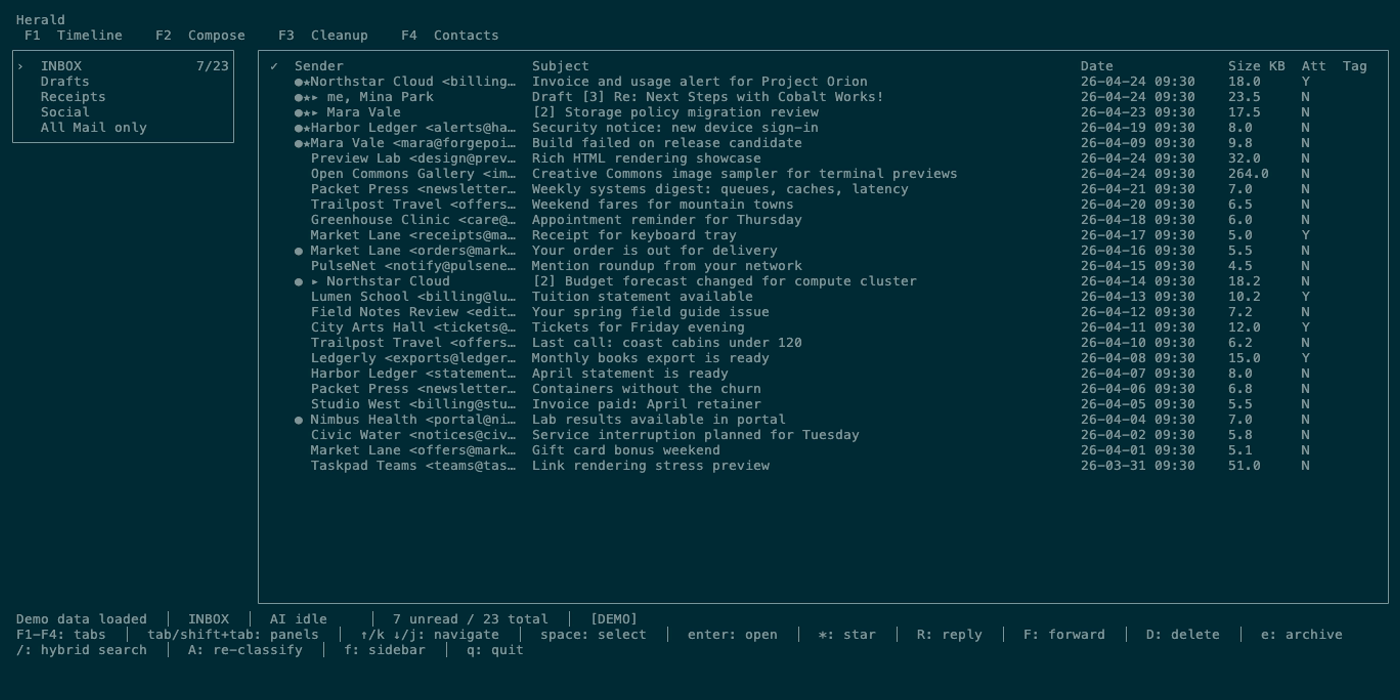
Sync and status messaging explains what Herald is doing in the background. The bottom status bar and optional top sync strip are the best places to understand loading, folder counts, AI tasks, deletion/archive progress, demo mode, dry-run mode, and narrow terminal decisions.
Overview
Section titled “Overview”Herald keeps a persistent IMAP connection open while the app runs. It processes new mail into SQLite, updates folder counts, listens for changes when possible, and falls back to polling based on config.
Screen Anatomy
Section titled “Screen Anatomy”| Area | What it shows |
|---|---|
| Loading view | Startup phase, elapsed time, spinner, optional progress counts, progress bar, ETA, and quit hint. |
| Top sync strip | Human-readable current sync action when cached data is visible during live work. |
| Folder breadcrumb | Current folder path using a breadcrumb-style separator. |
| Folder counts | Unread and total count, with an unsettled marker while counts are still loading. |
| AI chip/progress | AI status and classification/embedding progress. |
| Cleanup mode | Sender/domain mode and selection counts. |
| Deletion progress | Delete/archive queue progress and reconnect status. |
| Sync timer | live for active IDLE or countdown seconds for polling. |
| Demo/dry-run/log flags | [DEMO], [DRY RUN], and Logs ON when active. |
| Sidebar notice | Auto-hidden sidebar explanation at narrow widths. |
Controls
Section titled “Controls”| Key | Context | Preconditions | Result |
|---|---|---|---|
r | Main UI | Not loading. | Refreshes current folder and starts sync progress. |
l / L | Main UI | Visible data can be interacted with. | Opens log viewer for more detailed runtime messages. |
q | Loading view or main UI | Any state. | Quits. |
f | Timeline/Cleanup | Sidebar supported. | Can hide/show sidebar; status reports when width auto-hides it. |
S | Main UI | Settings closed. | Opens settings where sync interval, IDLE, and cleanup schedule can be changed. |
Workflows
Section titled “Workflows”Understand Startup
Section titled “Understand Startup”- Launch Herald.
- Watch the loading banner while no cached data is visible.
- Once cached rows appear, use the top sync strip and status bar to track remaining IMAP work.
- Continue using cached rows while sync completes.
Refresh a Folder
Section titled “Refresh a Folder”- Open the folder in the sidebar.
- Press
r. - Watch the top sync strip and bottom status.
- Resume normal work after loading clears.
Investigate Status With Logs
Section titled “Investigate Status With Logs”- Press
l. - Review INFO, WARN, ERROR, and DEBUG lines.
- Press
lagain to close.
States
Section titled “States”| State | What happens |
|---|---|
| Opening folder | Sync strip says Herald is opening the mailbox, possibly waiting on another mail client. |
| Checking sync state | Herald compares cached state with live mailbox state. |
| Fetching new mail | Progress shows count of new rows being cached. |
| Finalizing | Sender stats and folder counts are refreshed. |
| No new mail | Status reports the current folder is up to date. |
| IDLE live | Status shows live sync. |
| Polling | Status shows countdown seconds until next poll. |
| Counts unsettled | Folder count includes an ellipsis until loading settles. |
| Connection lost during delete | Delete progress notes reconnecting. |
| Logs on | Status includes Logs ON. |
Data And Privacy
Section titled “Data And Privacy”Sync reads IMAP folder state, message metadata, flags, body structure, and new messages. It writes cached rows, classifications, contacts, and folder status to SQLite/backend storage. Logs are written to local log files only, not to terminal output.
Troubleshooting
Section titled “Troubleshooting”If counts look stale, press r and wait for sync state to settle.
If the app seems idle but expected mail is missing, verify the selected folder in the sidebar and check whether polling or IDLE is configured.
If startup takes a long time, cached data should appear as soon as possible; open logs with l after the main UI appears for details.
Screenshot Placeholders
Section titled “Screenshot Placeholders”