Contacts
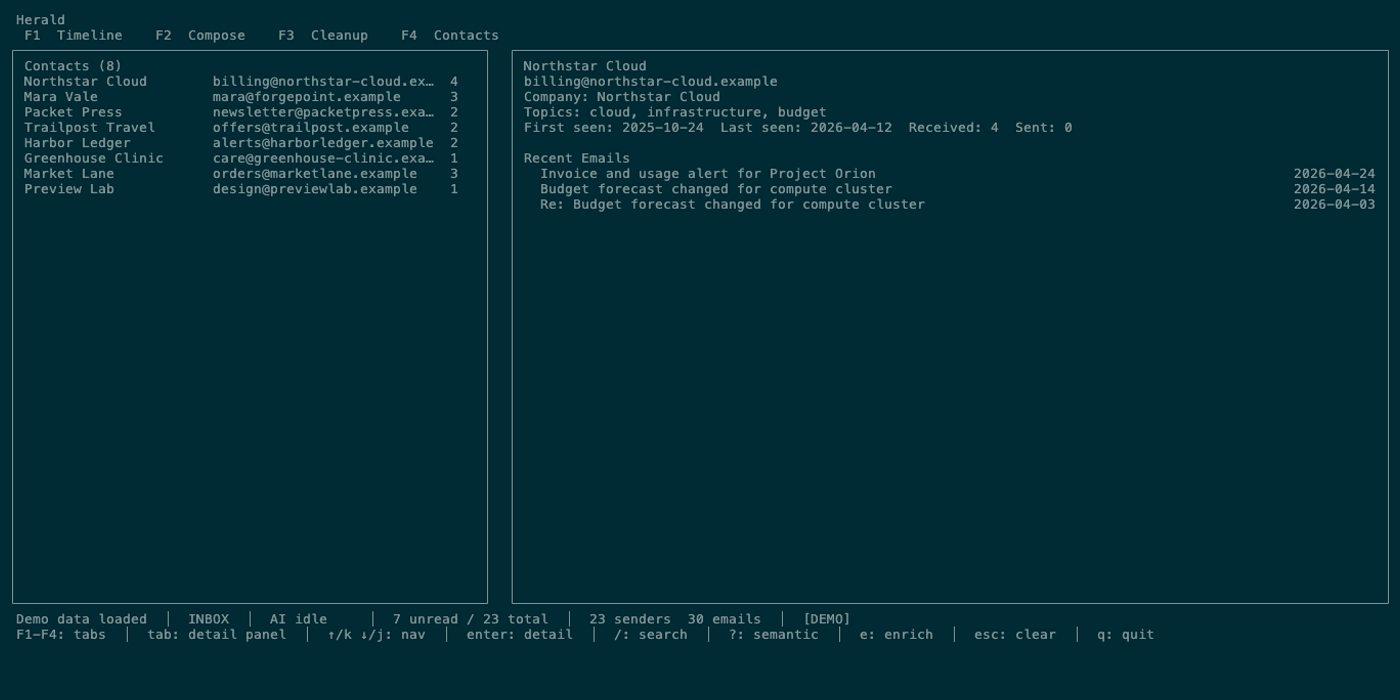
Contacts turns the senders and imported address book data Herald knows about into a navigable tab. It is useful for finding a person or company, reviewing recent mail from that contact, opening an inline preview, and enriching contact metadata.
Overview
Section titled “Overview”Press 2 to open Contacts. Herald loads contacts from the backend and, on macOS, can import Apple Contacts at startup through the native Contacts.framework API. Contacts can be searched by keyword or semantic similarity when AI/embeddings are available.
Screen Anatomy
Section titled “Screen Anatomy”| Area | What it shows |
|---|---|
| Contact list panel | Contact count and rows for known contacts. Wide terminals show Name, Email, Company, and Count; narrower terminals reduce columns. |
| Detail panel | Selected contact identity, company/topics when available, Herald Memories dossiers when available, and recent email list. |
| Recent email list | Up to 20 recent messages for the selected contact. |
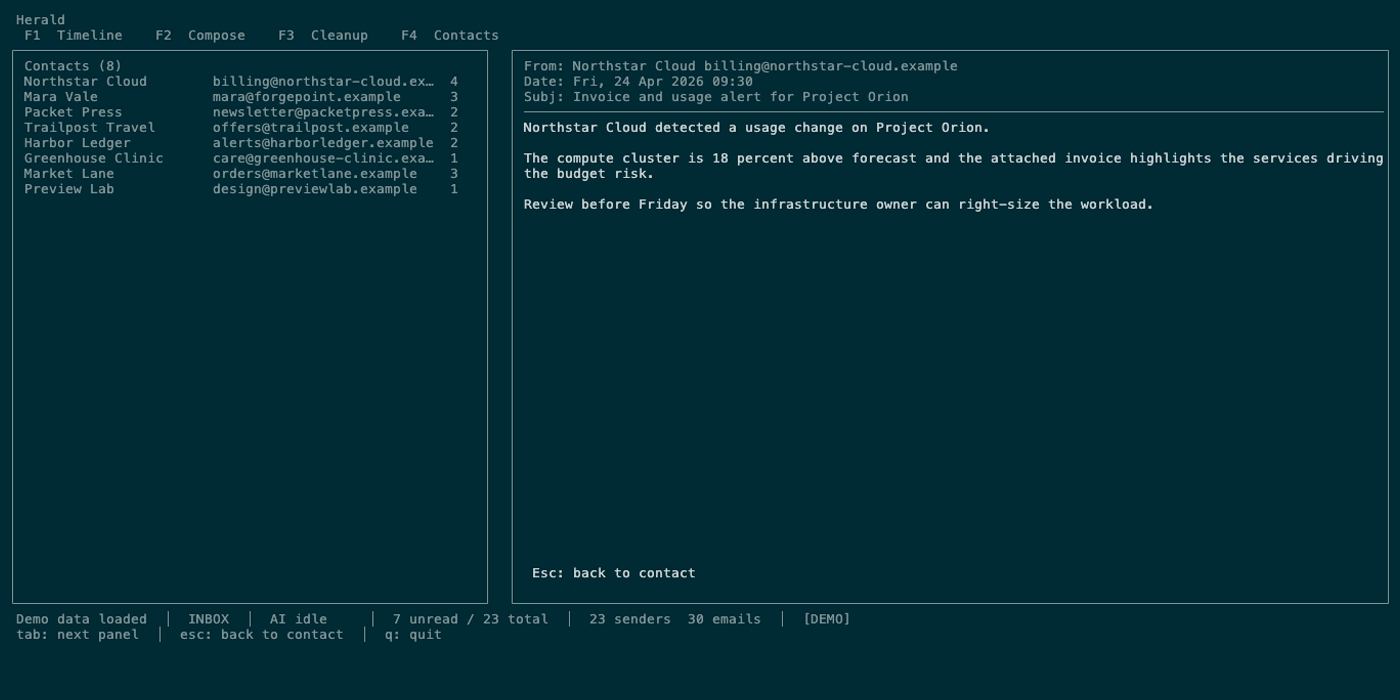
| Inline preview | Body preview for the selected recent email. |
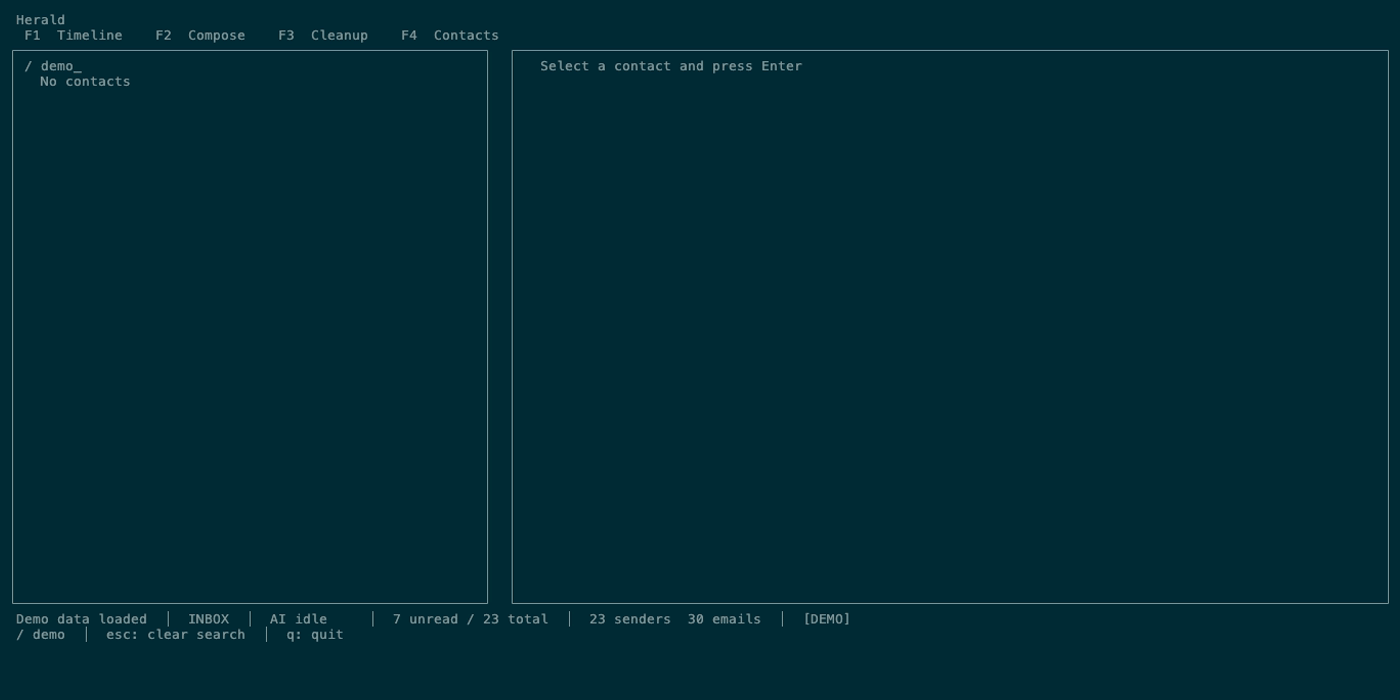
| Keyword search | / prompt and filtered contact list. |
| Semantic search | / search input with a ? query prefix and AI/embedding-backed contact results. |
| Status and hints | Contact load/enrichment messages and contact-specific key hints. |
Controls
Section titled “Controls”| Key | Context | Preconditions | Result |
|---|---|---|---|
/ | Contacts list | Search mode closed. | Opens keyword search. |
? | Contacts list | Search mode closed. | Opens context-sensitive shortcut help. |
? query | Contacts search | AI/embeddings available. | Runs semantic search. |
| Printable text | Search mode | Keyword or semantic search active. | Updates the search query and filtered list. |
backspace / ctrl+h | Search mode | Search query has characters. | Deletes one character and reapplies search. |
enter | Search mode | Search active. | Confirms current results and closes search input. |
esc | Search mode | Search active. | Clears search and restores full contact list. |
j / down | List panel | List focused. | Moves to next contact. |
k / up | List panel | List focused. | Moves to previous contact. |
enter | List panel | Contact row selected. | Opens contact detail and loads recent emails. |
tab | Contacts | Detail is open. | Toggles focus between list and detail panels. |
j / down | Detail panel | Recent email list focused. | Moves to next recent email. |
k / up | Detail panel | Recent email list focused. | Moves to previous recent email. |
enter | Detail panel | Recent email selected. | Opens inline email preview. |
esc | Preview/detail | Preview or detail active. | Closes preview first, then clears detail and search state. |
e | Contacts | A contact is selected or detail is open. | Runs single-contact AI enrichment. |
Workflows
Section titled “Workflows”Open a Contact Detail
Section titled “Open a Contact Detail”- Press
2. - Move through contacts with
j/k. - Press
enter. - Review contact metadata and recent messages.
Preview a Recent Email
Section titled “Preview a Recent Email”- Open a contact detail.
- Press
tabto focus the detail panel. - Use
j/kto choose a recent email. - Press
enter. - Press
escto return to contact detail.
Search Contacts
Section titled “Search Contacts”- Press
/. - Type a name, email, company, topic, or concept. Begin with
?for semantic search. - Press
enterto keep the filtered results. - Press
escto clear search.
Enrich a Contact
Section titled “Enrich a Contact”- Select a contact row or open detail.
- Press
e. - Wait for status to report enrichment progress or completion.
- Review new company/topic details when available.
Review Memory Dossiers
Section titled “Review Memory Dossiers”- Open a contact detail.
- Read the Herald Memories section when it appears.
- Use the source evidence labels and recent emails to verify the relationship summary, active tracks, open loops, and company status.
States
Section titled “States”| State | What happens |
|---|---|
| Loading contacts | Contacts tab waits for backend contact rows and displays status. |
| Empty contacts | List panel shows no contacts; open mail and sync folders to collect senders. |
| Keyword search | Search filters local contact fields while typing. |
| Semantic search | Search uses embeddings/AI availability; if unavailable, results may stay empty or status reports unavailable. |
| Detail loading | Recent emails load after enter on a contact. |
| Memory dossier | A bounded source-backed person or company dossier appears when matching local memories exist. |
| Inline preview loading | Body fetch starts for the selected recent email. |
| AI unavailable | e cannot enrich contact metadata. |
| Narrow terminal | Contact columns compress; detail remains accessible through tab when open. |
Data And Privacy
Section titled “Data And Privacy”Contacts reads and stores sender addresses, display names, company/topic metadata, message counts, recent email references, and optional embeddings. On macOS, read-only Apple Contacts import can add address book contacts through the backend using Contacts.framework. Enrichment sends selected contact and email-derived context to the configured AI backend. Herald Memories dossiers read local memory records and source evidence without writing contact fields.
Troubleshooting
Section titled “Troubleshooting”If Contacts is empty, sync at least one folder in Timeline and reopen Contacts.
If semantic search does not return expected results, confirm AI embeddings are configured and that enrichment or embedding processing has run.
If inline preview seems stale, close with esc, move to the message again, and press enter to refetch.
Screenshot Placeholders
Section titled “Screenshot Placeholders”