Settings
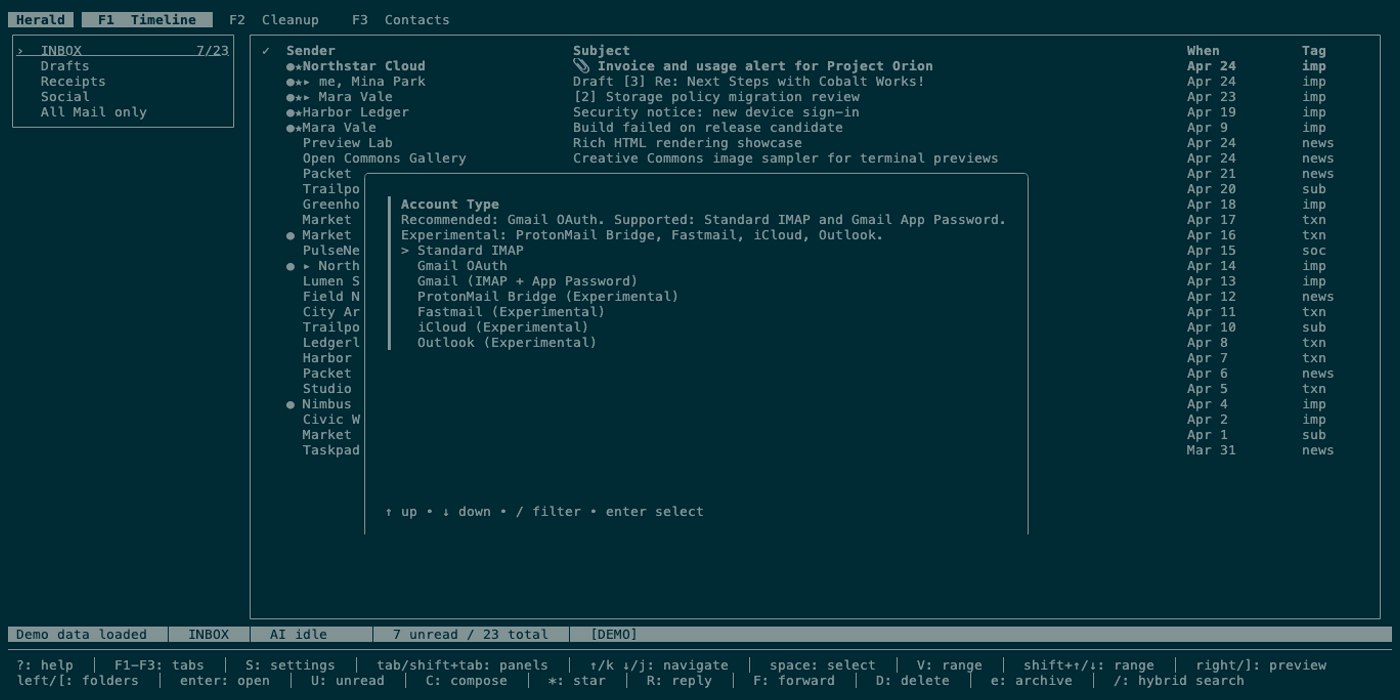
Settings is a compact centered overlay opened from the main TUI. It starts with a top-level menu for Accounts, Calendar, AI, Sync & Cleanup, Memories, Keyboard, Theme Selection, Theme Editor, and Signature, so you can adjust one area without stepping through unrelated fields while the current Herald screen remains visible behind it.
Overview
Section titled “Overview”Press S from the main UI to open settings. The overlay reads the current config, opens the selected category, writes the config path when that category is saved, updates supported runtime state, and can trigger OAuth wait behavior for supported OAuth flows.
Screen Anatomy
Section titled “Screen Anatomy”| Area | What it shows |
|---|---|
| Settings menu | Accounts, Calendar, AI, Sync & Cleanup, Memories, Keyboard, Theme Selection, Theme Editor, and Signature category choices. |
| Accounts | Configured mail and calendar sources, Add account, Add calendar only, provider credentials, OAuth, IMAP, SMTP, CalDAV, and disconnect actions. |
| Calendar | Week start, visible calendar selections, and calendar-specific preferences. |
| IMAP fields | Host, port, and related server settings. |
| SMTP fields | Host, port, and send settings. |
| AI | Ollama local/custom, Claude, OpenAI-compatible, disabled, chat/classification model, and embedding model fields. |
| Sync & Cleanup | Poll interval minutes, IMAP IDLE setting, offline cache policy, manual offline-cache reclaim, cleanup schedule hours, automation-rule launcher, custom-prompt launcher, and cleanup-rule manager launcher. |
| Memories | Memory directory, included sources, vault path, destinations, Obsidian output modes, update rules, prompt templates, confidence thresholds, research safety, and read-only store counts. |
| Keyboard | Keyboard profile and optional custom keymap YAML path. |
| Theme Selection | App theme selection and local YAML install. |
| Theme Editor | Semantic role color editing, live preview, reset controls, and custom theme creation. |
| Signature | Multiline default Compose signature text. |
| Save/cancel controls | Category-level save returns to the menu; esc backs out one level before exiting and does not save unsaved category edits. |
| OAuth wait overlay | URL/open-browser state while waiting for OAuth callback and token storage. |
Controls
Section titled “Controls”| Key | Context | Preconditions | Result |
|---|---|---|---|
S | Main UI | Settings closed. | Opens settings as a compact centered overlay. |
/ | Settings menu | Category menu is focused. | Opens the category filter prompt. |
enter | Settings menu | A category is highlighted. | Opens that settings category. |
tab | Settings category form | A form field is active. | Moves through form controls according to the form component. |
enter | Settings category form | Current field or form action is valid. | Accepts selection, advances, or saves when on final action. |
esc | Settings menu filter | Filter is active or applied. | Exits filter entry or clears the applied filter before panel close. |
esc | Settings category form | No field-local escape action is active. | Returns to the top-level settings menu without saving unsaved category edits. |
esc | Settings menu | No filter is active. | Exits Settings and returns to the underlying screen. |
enter | OAuth wait overlay | OAuth URL available. | Opens browser to the authorization URL. |
ctrl+c | Any settings state | Any state. | Quits Herald. |
Workflows
Section titled “Workflows”Open and Save Settings
Section titled “Open and Save Settings”- Press
S. - Choose
Accounts,Calendar,AI,Sync & Cleanup,Keyboard,Theme Selection,Theme Editor, orSignature. - Update the fields in that category.
- Save the category.
- Herald writes config, applies runtime changes that can be applied immediately, and returns to the settings menu.
Add Mail or Calendar Sources
Section titled “Add Mail or Calendar Sources”- Press
S. - Choose
Accounts. - Choose
Add accountto add a mail source, or chooseAdd calendar onlyfor a standalone calendar. - For Gmail OAuth, leave
Include Google Calendarenabled when you want Gmail and Google Calendar added through one browser consent flow. - For standalone calendars, choose Google Calendar OAuth or a CalDAV provider such as Fastmail, iCloud, Yahoo, or Custom CalDAV.
- Save after Herald validates the selected source. Mail saves validate read/send access; calendar saves validate by listing calendars before writing config.
Reclaim Offline Cache Storage
Section titled “Reclaim Offline Cache Storage”- Press
S. - Choose
Sync & Cleanup. - Enable
Reclaim offline cache storage. - Save the category.
- Review the before/after byte estimate and the preserved-data note.
- Press
yto prune disallowed cached preview bytes and compact SQLite, or pressn/Escto cancel.
Manage Cleanup Automation
Section titled “Manage Cleanup Automation”- Press
S. - Choose
Sync & Cleanup. - Choose the automation-rule, custom-prompt, or cleanup-rule manager launcher.
- Use the compact overlay to edit, preview, save, enable, or run the chosen rule surface.
Choose Offline Cache Policy
Section titled “Choose Offline Cache Policy”The Offline Cache selector controls how much fetched preview data Herald keeps for later reading. New configs default to Message bodies without attachments, which lets background preview loading support offline reading without keeping downloadable attachment bytes. Lightweight previews keeps preview text, headers, and attachment metadata only. Full offline archive keeps fetched preview data including attachment bytes, using more disk and keeping more mail data locally.
Change AI Provider
Section titled “Change AI Provider”- Press
S. - Choose
AI. - Choose an AI provider.
- Enter host, model, API key, or compatible base URL as required.
- Save.
- Watch the AI status chip after returning to the main UI.
Configure Herald Memories
Section titled “Configure Herald Memories”- Press
S. - Choose
Memories. - Review the default local directory, source folders, allowed memory tasks, optional Obsidian output, automatic extraction trigger, prompt-template inventory, and advanced thresholds.
- Save changes or return to the menu with
Esc.
Change Keyboard Profile
Section titled “Change Keyboard Profile”- Press
S. - Choose
Keyboard. - Choose
Default,Vim,Emacs, orCustom YAML. - For
Custom YAML, enter the keymap file path. - Save.
- Reopen shortcut help with
?to verify the active profile shown in the overlay.
Change Theme
Section titled “Change Theme”Theme settings stay local-first while separating quick selection from deeper editing. Theme Selection switches built-in themes and installs validated YAML files from disk; Theme Editor edits semantic roles without adding a new global shortcut.
- Press
S. - Choose
Theme Selection. - Choose
Inherited,Herald dark,Herald light, a built-in palette such asJade SignalorAmber Furnace, or an installed theme. - Optionally enter a local YAML theme file path to install it into
~/.herald/themes. - Save.
- Reopen Settings and choose
Theme Editor. - Select a semantic role, edit foreground/background with
inherit,ansi:N,xterm:N, or#RRGGBB, and review the swatches/live preview. - Use reset controls for one role or all overrides, or provide a new theme name to save the current overrides as a reusable local theme.
- Save.
Start OAuth
Section titled “Start OAuth”- Choose an OAuth-capable provider path from
Settings > Accounts. - In first-run onboarding or the in-app settings overlay, choose the OAuth path directly.
- Confirm you are using Homebrew/a release binary with OAuth defaults, a source build made with
.herald-dev.envor exported Google OAuth variables, or a shell that hasHERALD_GOOGLE_CLIENT_IDandHERALD_GOOGLE_CLIENT_SECRETexported. See Local OAuth Builds for source-build options. - In the OAuth wait overlay, press
enterto open the browser. - Complete provider consent.
- Wait for Herald to validate the selected mail and calendar access. First-run setup then continues to optional preferences; in-app account settings save token data and return to the app after validation succeeds.
States
Section titled “States”| State | What happens |
|---|---|
| Menu mode | Settings shows the top-level category menu and any saved/error notice from the last category save. Menu hints show enter open, esc exit, and bottom-screen Settings hints. |
| Menu filter | / filters the category menu; esc exit filter leaves filter entry, esc clear filter clears applied text, and only the next esc closes Settings. |
| Category mode | Settings shows only the selected category’s fields plus save/cancel controls. Esc returns to the menu first; the next menu-level Esc exits. |
| Overlay mode | Settings appears over the current screen at supported sizes; at 80x24 it fits inside the viewport, and at 50x15 the standard minimum-size guard appears instead of a clipped form. |
| First-run mode | Account details are validated before optional preference steps, and wizard completion is required before the main mailbox opens. |
| Account validation | Account settings are held in memory while Herald checks the selected mail and calendar provider access before saving or applying them. |
| OAuth waiting | Herald shows authorization URL state, waits for callback, and lets Esc/q cancel without saving settings. |
| OAuth cancelled or timed out | Herald shows a clear error, keeps previous settings active, and does not write token data. |
| OAuth saved | Token data is written to config only after OAuth, selected provider validation, and final setup save succeed. |
| AI model changed | Herald may reset embeddings so stale vectors do not mix with a new embedding model. |
| Memories unavailable | Settings still opens; memory counts show zero or a bounded unavailable state when the store cannot be read. |
| Offline cache reclaim pending | Herald shows the current policy, before/after byte estimate, and note that preview text, headers, and attachment metadata stay cached before it accepts y to proceed. |
| Offline cache reclaimed | Herald reports rows pruned, bytes removed, and whether SQLite compaction completed. |
| Config permission warning | Startup warns if group/other users can read the config file. |
| Save error | The panel reports an error if config cannot be written. |
Data And Privacy
Section titled “Data And Privacy”Settings reads and writes credentials, app passwords, OAuth tokens, server hosts, SMTP settings, AI provider keys, model names, sync options, cleanup schedule, cleanup automation entrypoints, cache path values, and Herald Memories configuration. Account settings are validated before they replace the active account; failed validation leaves the previous config, backend, and SMTP client active. OAuth refresh tokens and external AI keys should be treated as credentials. Offline-cache reclaim removes only preview binary payloads that the current cache policy disallows; preview text, headers, unsubscribe data, and attachment metadata remain available.
Troubleshooting
Section titled “Troubleshooting”If settings will not save, check file permissions for the config path and parent directory.
If account validation fails, check the IMAP or SMTP section named in the error. Run herald -debug and open the latest file in ~/Library/Logs/Herald on macOS, ${XDG_STATE_HOME:-~/.local/state}/herald/logs on Linux/BSD, or %LOCALAPPDATA%\\Herald\\Logs on Windows.
If OAuth does not complete, copy the displayed URL into a browser and finish consent. If you choose Cancel on the consent screen, Herald reports that authorization was cancelled and does not save settings.
If OAuth fails before showing a URL with Google OAuth credentials are not configured, use Homebrew or another release binary, export the two HERALD_GOOGLE_* variables before starting Herald, or build locally after filling .herald-dev.env. Plain make build embeds those values when both are available and still succeeds without them; make build-release-local reads .herald-release.env and remains strict if either value is missing. See Local OAuth Builds for the detailed local build paths.
If AI stops working after model changes, verify the new model is installed or reachable and allow embedding regeneration to complete.
Use ./bin/herald --demo -theme jade-signal to preview a theme for one session without changing Settings.
Screenshot Placeholders
Section titled “Screenshot Placeholders”