Compose
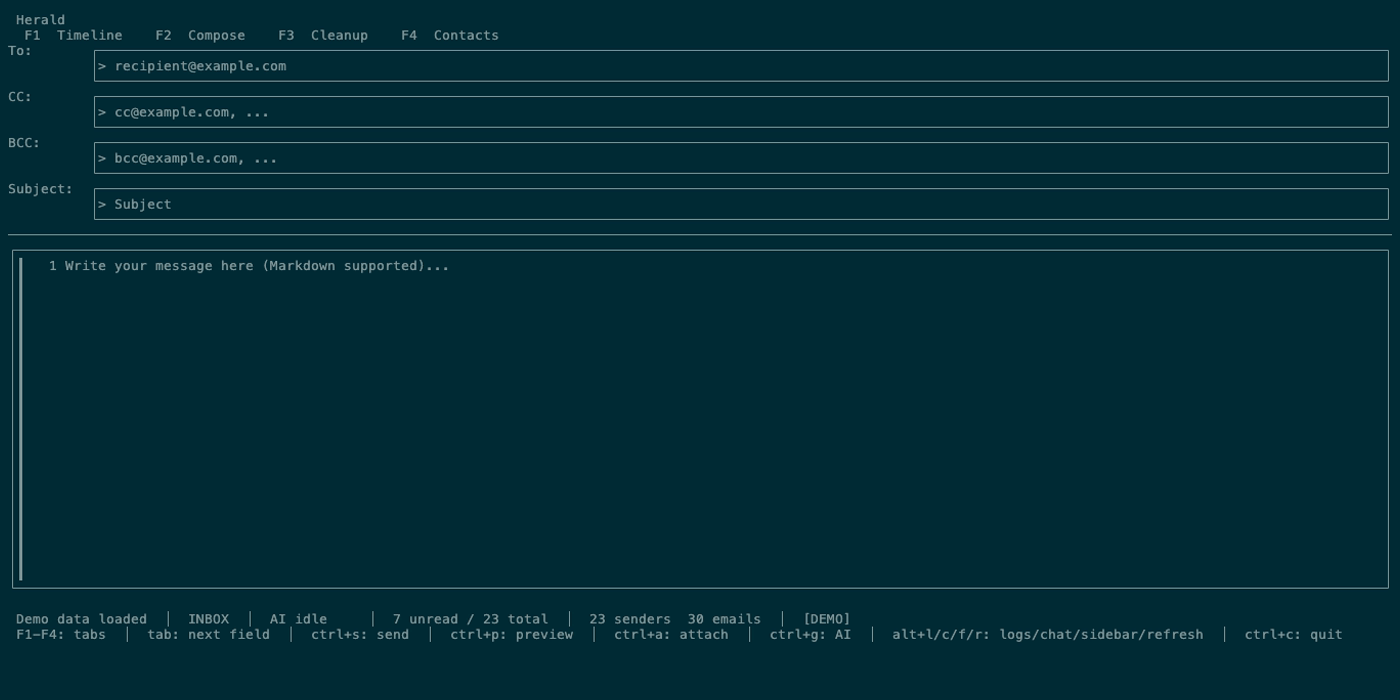
Compose is Herald’s writing screen. It supports normal message composition, replies, forwards, CC/BCC, Markdown preview, file attachments, address autocomplete, draft auto-save, AI rewrite assistance, AI subject suggestions, and send error recovery.
Overview
Section titled “Overview”Press c from Timeline to open a blank Compose screen. Compose sends through the configured SMTP server and can also be opened pre-filled by Timeline reply, Timeline forward, draft edit, or quick reply workflows.
Screen Anatomy
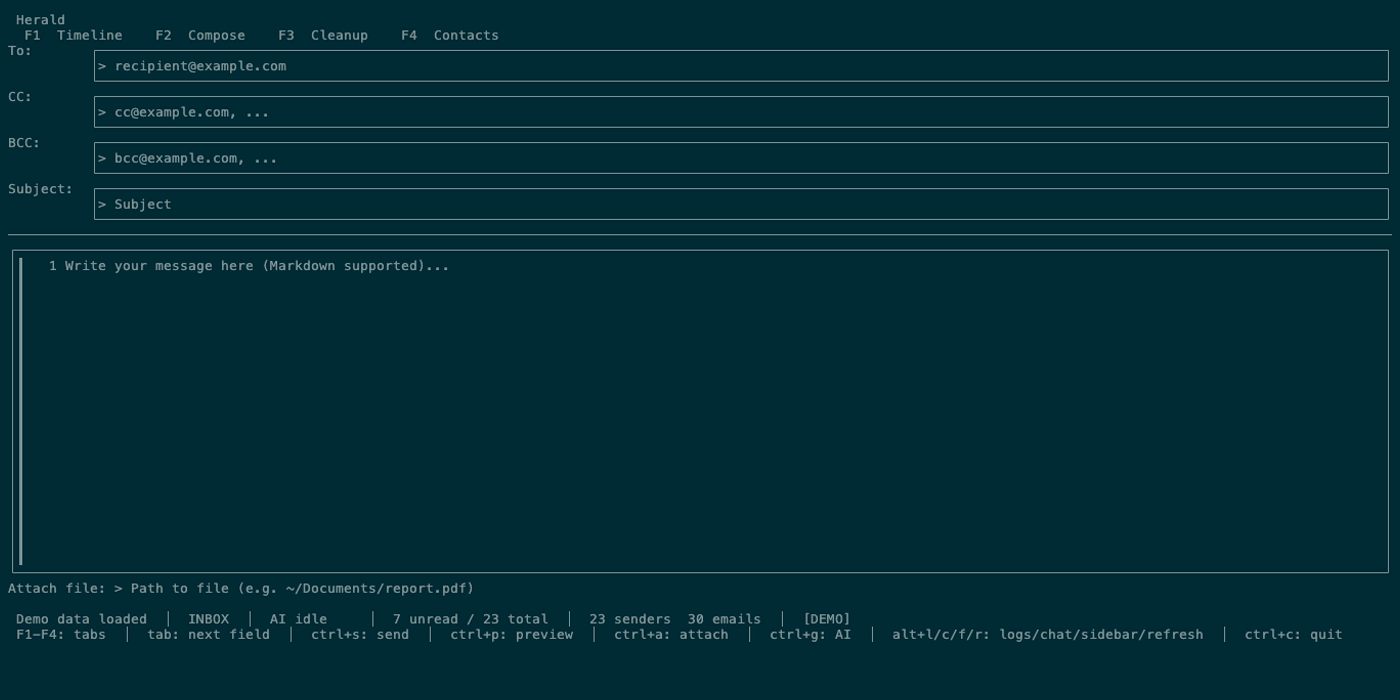
Section titled “Screen Anatomy”| Area | What it shows |
|---|---|
| To field | Primary recipients. Autocomplete searches contacts once the current token has enough characters. |
| CC field | Carbon-copy recipients with the same autocomplete behavior. |
| BCC field | Blind-copy recipients with the same autocomplete behavior. |
| Subject field | Message subject and optional AI-generated subject hint. |
| Body field | Markdown-capable message body. |
| Markdown preview | Rendered body preview using Glamour when ctrl+p is active. |
| Attachment lines | Attached file paths or filenames after files are added. |
| Attachment path prompt | One-line path input opened by ctrl+a. |
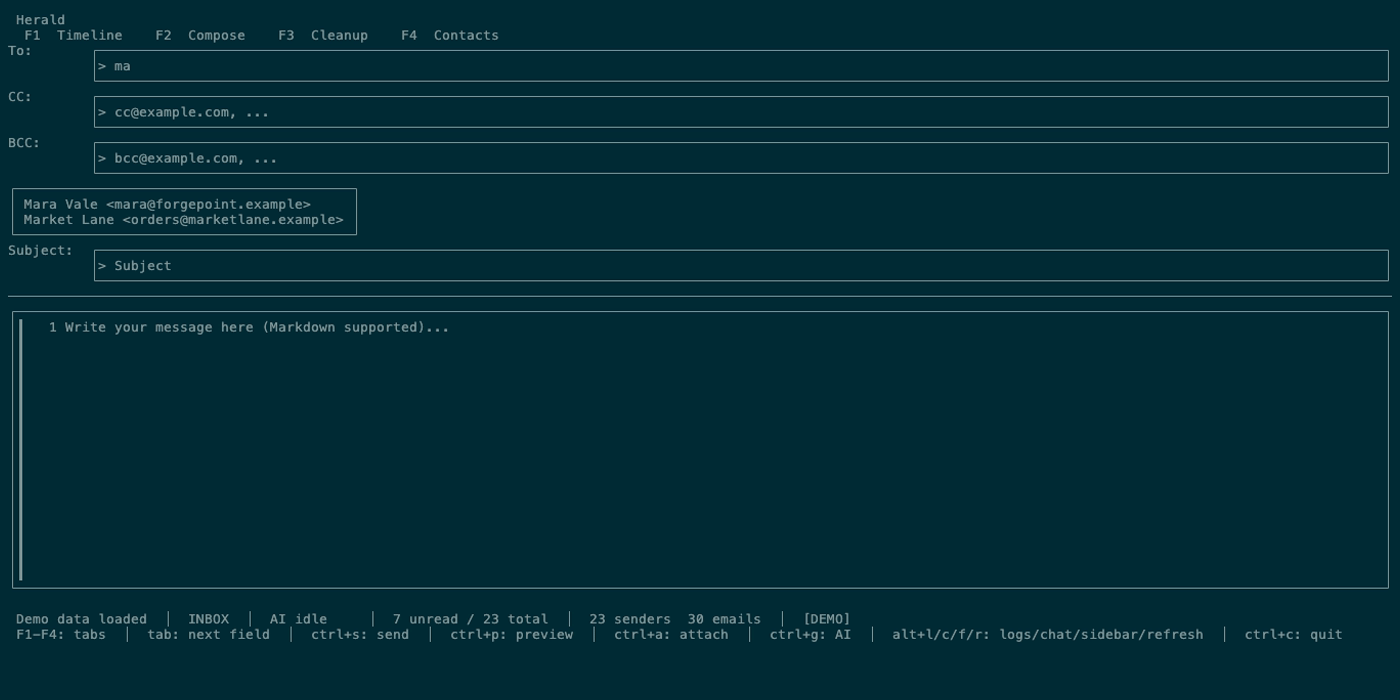
| Autocomplete dropdown | Up to several contact suggestions with selected row and hidden-count note when compressed. |
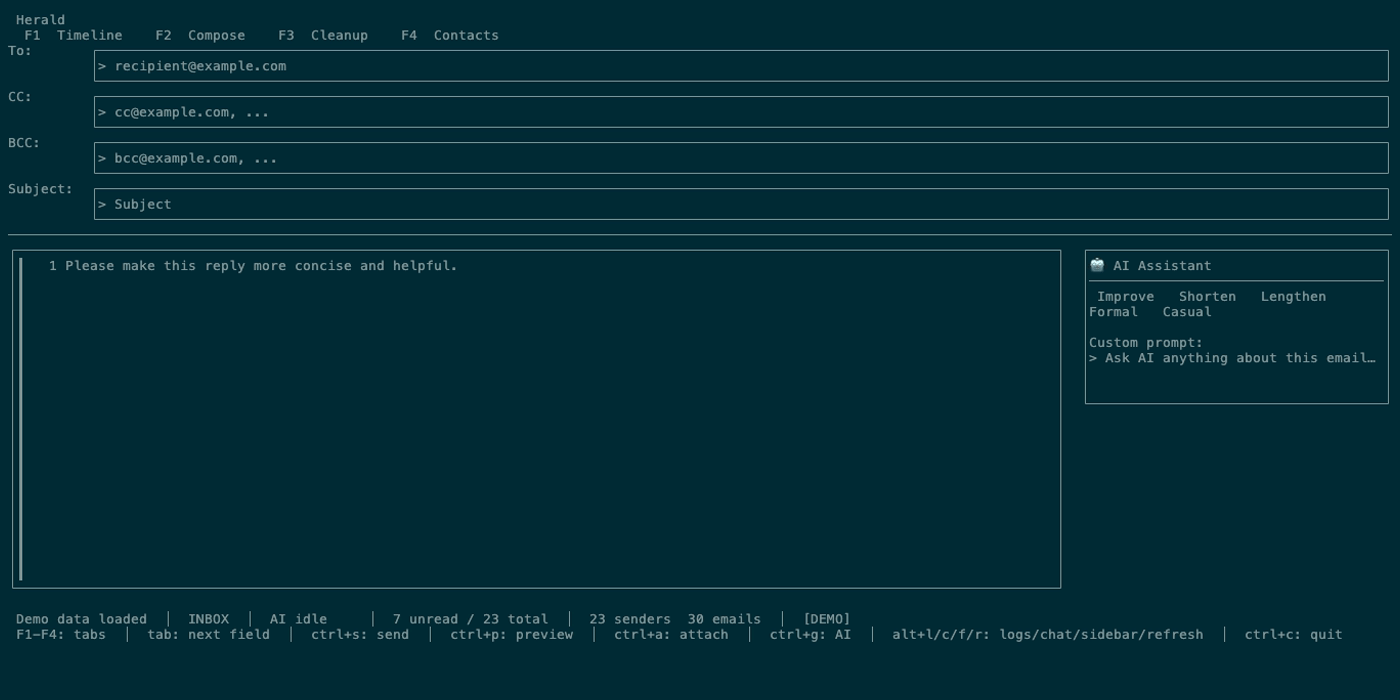
| AI assistant panel | Custom prompt input, quick rewrite actions, generated response, and accept behavior. |
| Compose Radar | Source-backed Herald Memories nudges for reply drafts when matching high-confidence context exists. |
| Compose status | Validation errors, send state, AI messages, attachment errors, and draft status. |
Controls
Section titled “Controls”| Key | Context | Preconditions | Result |
|---|---|---|---|
| Plain letters and digits | Compose fields | Any Compose text field is focused. | Inserts text, including q and numbers, without switching tabs or quitting. |
F1 / F2 / F3 / F4 | Compose | Main Compose handler active. | Switches to Timeline, Contacts, legacy Contacts, or Calendar without inserting text. |
tab | Compose fields | No autocomplete selection is being accepted and no subject hint is pending. | Moves focus To -> CC -> BCC -> Subject -> Body -> To. |
tab | Subject hint | AI subject hint is visible. | Accepts the suggested subject. |
ctrl+s | Compose | SMTP configured, To not empty, Subject not empty. | Sends the message with Markdown-derived HTML/plain text and attachments. |
ctrl+p | Compose | Any draft. | Toggles Markdown preview. |
ctrl+x | Compose | $VISUAL or $EDITOR is configured, otherwise Herald falls back to nano. | Opens the body/top-note in an external editor and reads the saved buffer back into Compose. |
ctrl+a | Compose | Attachment prompt not already active. | Opens file path input for adding an attachment. |
enter | Attachment prompt | Attachment prompt active. | Adds the expanded path as an attachment. |
esc | Attachment prompt | Attachment prompt active. | Cancels attachment input. |
ctrl+k | Compose | AI backend configured. | Focuses the inline AI prompt in the Compose toolbar. |
enter | AI prompt field | AI assistant prompt has text. | Sends the custom instruction to the AI assistant. |
1 to 5 | AI panel | AI panel open and body is not empty. | Runs quick actions: improve, shorten, lengthen, formal, or casual. |
ctrl+enter | AI panel | AI response is available. | Replaces the body with the AI response and closes the panel. |
ctrl+j | Compose | AI configured and body or reply context exists. | Requests an AI subject suggestion. |
esc | Compose | Subject hint, AI panel, compose status, or origin screen exists. | Clears local transient state first, then returns to the screen that opened Compose. |
up / down | Autocomplete dropdown | Suggestions are visible. | Moves the selected suggestion. |
enter / tab | Autocomplete dropdown | Suggestions are visible. | Accepts the selected suggestion into the active address field. |
esc | Autocomplete dropdown | Suggestions are visible. | Dismisses suggestions. |
Workflows
Section titled “Workflows”Send a New Message
Section titled “Send a New Message”- Open Timeline and press
c. - Enter at least one
Torecipient. - Press
tabthrough CC, BCC, Subject, and Body as needed. - Write the body.
- Press
ctrl+pto inspect Markdown rendering when desired. - Press
ctrl+s.
Add an Attachment
Section titled “Add an Attachment”- Press
ctrl+a. - Type or paste a file path.
~is expanded. - Press
enter. - Confirm the attachment line appears.
- Send normally.
Edit Body In Your Editor
Section titled “Edit Body In Your Editor”- Write or focus a Compose draft.
- Press
ctrl+x. - Edit the temporary Markdown buffer in
$VISUALor$EDITOR. - Save and exit the editor.
- Continue composing, previewing, attaching, or sending in Herald.
Use Address Autocomplete
Section titled “Use Address Autocomplete”- Type part of a name or email in To, CC, or BCC.
- When suggestions appear, use
up/downto select. - Press
enterortabto insert the contact. - Continue typing more recipients.
Use AI Writing Assistance
Section titled “Use AI Writing Assistance”- Write body text first.
- Press
ctrl+torctrl+yto choose a translate or style option, or pressctrl+kto focus the inline AI prompt. - Use the toolbar quick actions or type a custom instruction and press
enter. - Review the AI response.
- Press
ctrl+enterto accept it into the body, orescto close the panel.
Review Compose Radar
Section titled “Review Compose Radar”- Reply to a memory-backed thread from Timeline.
- Read the compact Compose Radar nudges.
- Open source evidence or insert a bounded phrase only when useful.
- Continue writing; Radar does not silently change the draft.
Reply or Forward From Timeline
Section titled “Reply or Forward From Timeline”- In Timeline, select a message.
- Press
Rto reply orFto forward. - Compose opens with recipient, subject, and body context pre-filled.
- Finish the message and press
ctrl+s.
States
Section titled “States”| State | What happens |
|---|---|
| Empty required fields | ctrl+s reports a send error when To or Subject is empty. |
| SMTP not configured | Send reports that SMTP is unavailable. |
| Markdown preview | Body is rendered as styled preview rather than the edit textarea. |
| Attachment input | Key input is captured by the path prompt until enter or esc. |
| Large attachment warning | Attachment add flow can warn when a file is larger than the configured threshold. |
| Autocomplete compact | Suggestions collapse to a single line when vertical space is tight. |
| AI unavailable | The Compose AI toolbar shows a configuration warning; ctrl+k and ctrl+j report no AI backend configured. |
| AI loading | The assistant waits for provider output and then displays a response. |
| Compose Radar hidden | No high-confidence memory matched the reply, or the relevant source evidence is missing. |
| Draft saved | Compose auto-saves drafts about every 30 seconds when there is content. |
| Compose-safe global actions | Plain q, letters, and digits stay in the draft. Use F1-F3 for Timeline/Contacts switching, with Alt+1/2, Alt+L, Alt+C, Alt+F, and Alt+R as secondary global actions while writing. |
| Return to origin | esc returns from Compose to the Timeline list, preview, or search state that opened it after local Compose transient state is dismissed. |
| Send success | Fields clear, saved draft is deleted, and status reports send success. |
| Send error | Draft content remains available so you can fix configuration or message fields. |
Data And Privacy
Section titled “Data And Privacy”Compose reads contacts for autocomplete and writes drafts through Herald’s backend. Sending uses SMTP credentials from config and sends the full message, recipients, Markdown-derived bodies, and attachments to the SMTP server. AI assistance sends draft text and optional reply context to the configured AI backend. Compose Radar reads local Herald Memories and does not send, write Obsidian notes, or mutate drafts without an explicit action. Attached files are read from local disk when added or sent.
Troubleshooting
Section titled “Troubleshooting”If autocomplete does not appear, keep typing until the current token is long enough and confirm contacts have been imported or learned from mail.
If ctrl+s does not send, read the compose status for missing To, missing Subject, SMTP configuration, or provider errors.
Function-key tab aliases remain available while composing. Other browse shortcuts stay out of Compose text fields, so printable keys and Alt-modified text can be typed safely.
If an AI subject suggestion appears but you do not want it, press esc. If you do want it, press tab.
If a send error occurs after attaching files, verify the file still exists and that your provider accepts the message size.
Screenshot Placeholders
Section titled “Screenshot Placeholders”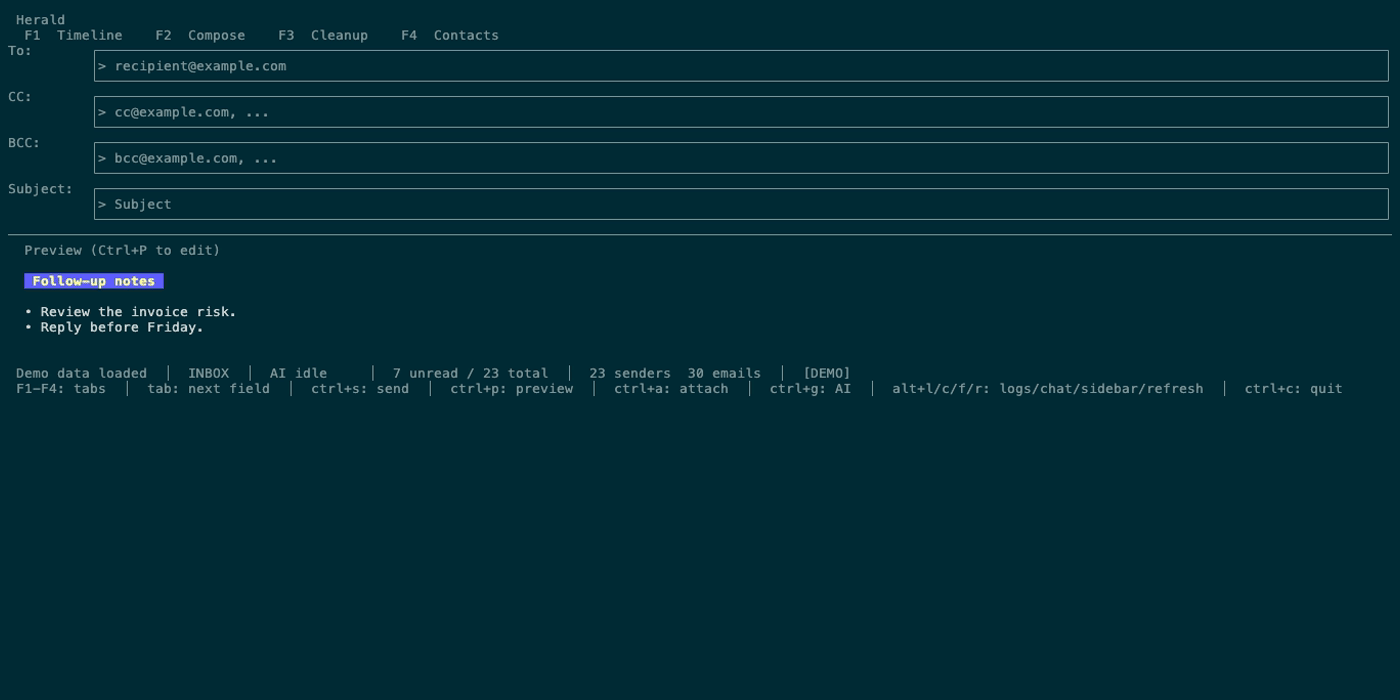
Related Pages
Section titled “Related Pages”Sending identities
Section titled “Sending identities”An identity is an alternate From name and address for the same mailbox account. Configure aliases that your provider already permits you to send from; Herald keeps the account’s authentication, folders, and signature.
Open Settings → Accounts, select your mail account, and press Enter. Tab to Edit sending identities, just below Include Google Calendar, and press Enter. For accounts without that calendar option, the button follows the email address. Choose Add identity, enter the name and address, optionally make it the default, then select Apply to list. Select Save changes in the list to persist your changes; Compose uses them immediately.
Select an existing alias to edit it or choose Remove identity and confirm. Removing the default restores the primary sender as the default. Select the primary sender and choose Use primary as default to switch back; the primary address cannot be removed here. Escape cancels an editor; Escape from the list discards changes made since the last save. Identity changes do not change account credentials or reconnect the mailbox.
For configuration-file users, the equivalent YAML is:
compose: identities: - name: Shopping address: shopping@example.com - name: Public address: public@example.com default_identity: shopping@example.comFor multiple accounts, put this compose block inside the corresponding mail entry in sources. For a legacy single-account configuration, use the top-level block. default_identity is optional: without it, the account’s primary address remains the default. The primary address always remains selectable. Addresses must be unique within the account, and the default must name either the primary address or a configured alias.
Compose shows From when there is more than one sender available. Use Shift+Tab from To (or Tab through the fields) to focus it. Type part of a name or address to filter; Up/Down cycles matching senders. Enter or Esc clears the filter. A search with no matches keeps the current sender and displays “No matches.” Confirm the visible From address before sending. Without aliases, the existing account picker shortcuts continue to work.
New messages and forwards use the account default. Replies prefer a configured identity found in the original To or CC header within the same account. Saved drafts restore a configured From address; if that address is no longer configured, they use the current account default. Changing From preserves the draft’s recipients, subject, body, attachments, and existing signature.
To try this without contacting a provider, add the top-level block to a valid test configuration and launch herald --demo -config /path/to/test.yaml. Demo mode uses synthetic mail; it does not authenticate to the configured server.