Global UI
Global UI covers the parts of Herald that stay consistent while you move between tabs. Learn this page first if the interface feels dense: it explains where status lives, how focus moves, and why some panels appear or disappear at smaller terminal sizes.
Overview
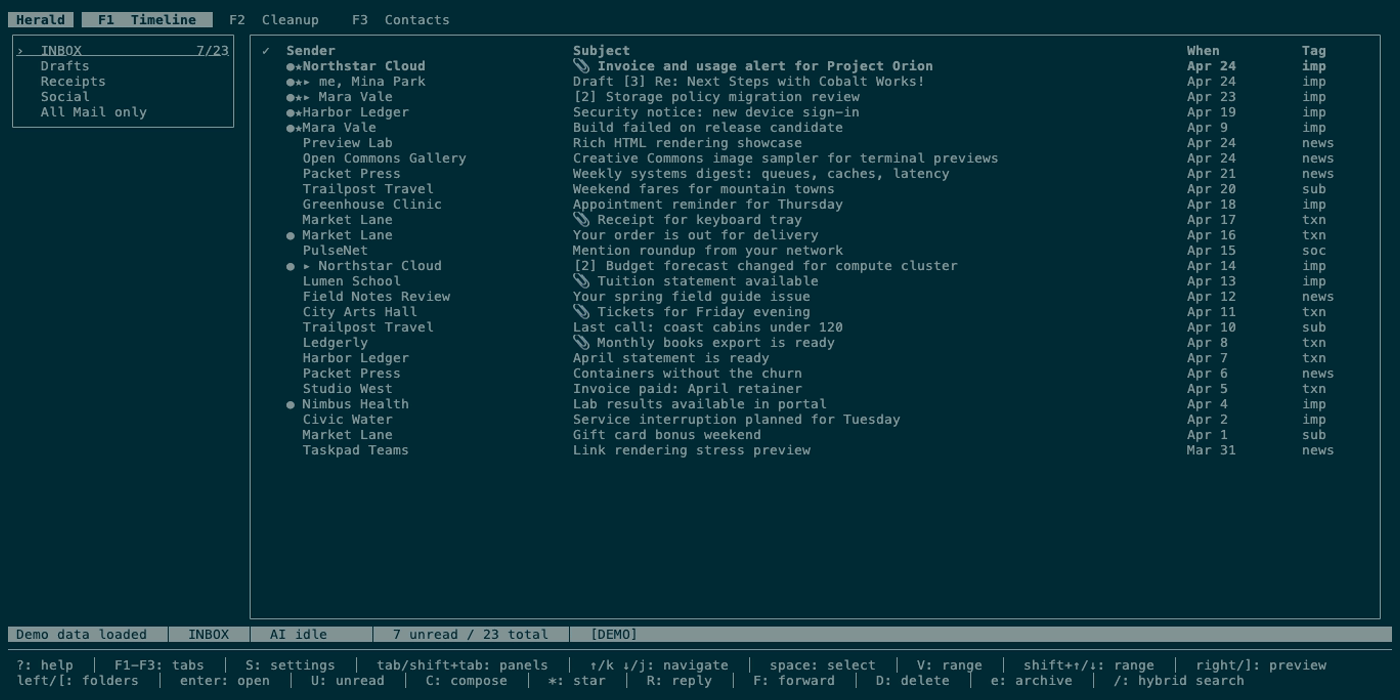
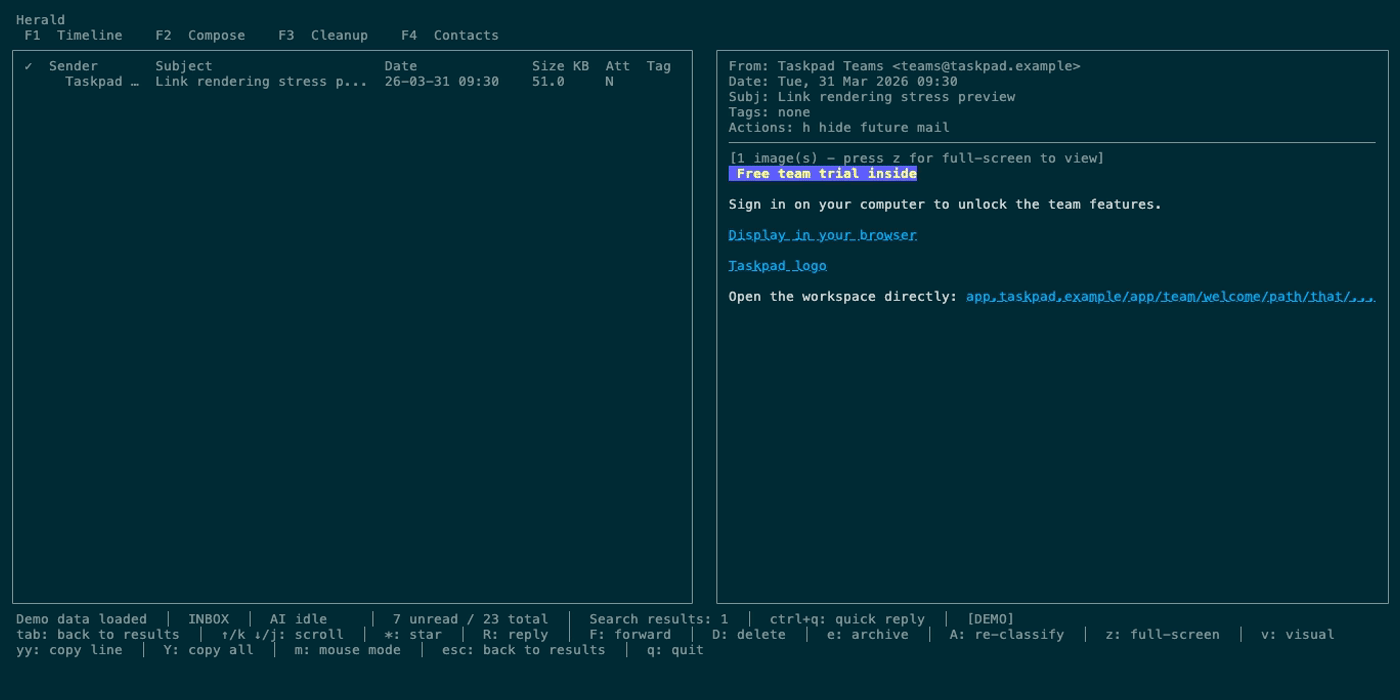
Section titled “Overview”Herald is a Bubble Tea terminal app with a persistent title-row tab strip, optional folder or calendar rail, main content panels, optional chat panel, bottom status bar, context-sensitive key hints, and compact centered overlays for help, settings, and cleanup configuration. Browsing happens in Timeline, Contacts, or Calendar; cleanup review is a Timeline grouping mode, and Compose is a transient writing screen launched from Timeline.
Herald is keyboard-first, but it is not keyboard-only. You can click tabs and rows, scroll previews, and use visible hints while you learn; the keyboard remains complete when you want speed.
Screen Anatomy
Section titled “Screen Anatomy”| Area | What it shows | Notes |
|---|---|---|
| Title row | Herald plus 1 Timeline, 2 Contacts, and 3 Calendar when Calendar is available. | The active tab is highlighted. F1 opens Timeline, F2 opens Contacts, F3 is a temporary Contacts alias, F4 opens Calendar, and mouse clicks switch tabs when the terminal sends mouse events. |
| Top sync strip | Current startup or live sync phase. | Appears when Herald is loading while some visible data is already available. |
| Folder sidebar | IMAP folder tree with unread and total counts. | Visible mainly on Timeline when the terminal is wide enough. |
| Calendar rail | Mini month, calendar source groups, colored swatches, enabled state, counts, and filter scope. | Visible on Calendar when the terminal is wide enough. |
| Main panels | The active view content. | Timeline can split into list/preview layouts; Contacts uses list/detail panels. |
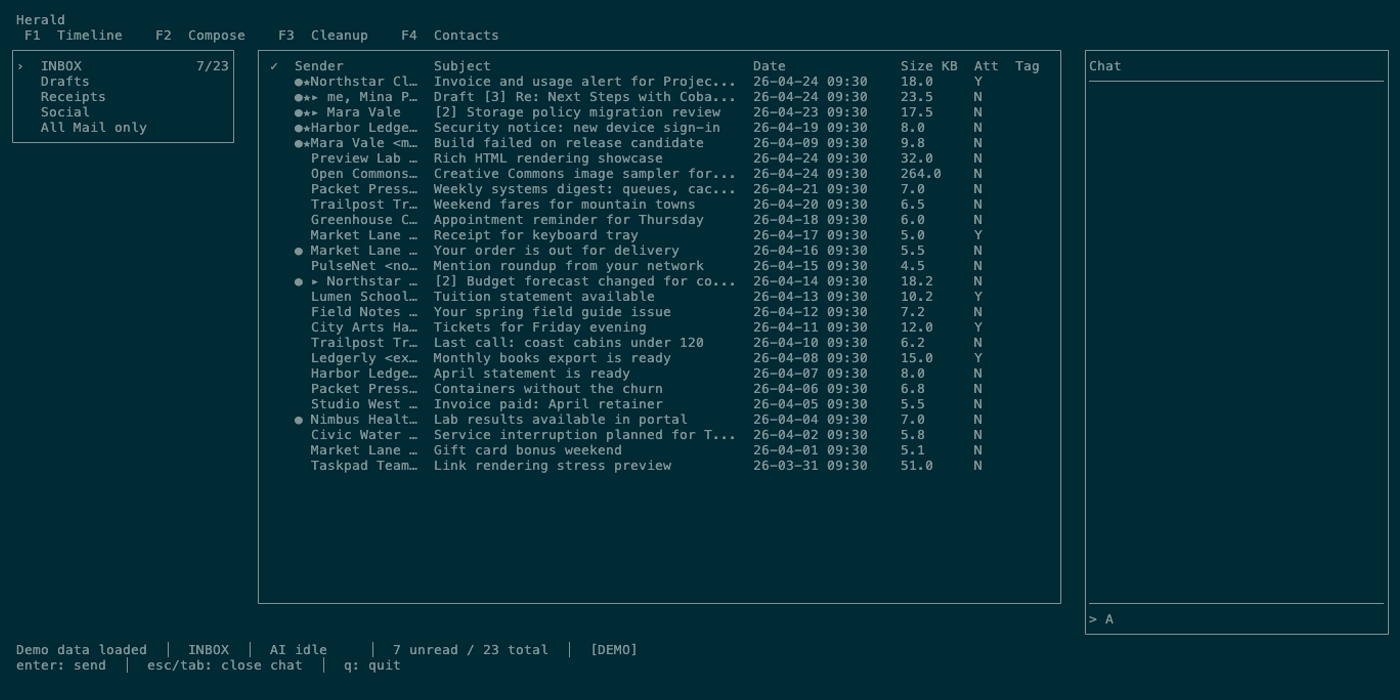
| Chat panel | Right-side AI chat input and transcript. | Opens with g when AI is configured and the terminal is wide enough; c remains a legacy alias outside Timeline text and Compose contexts. |
| Status bar | Folder breadcrumb, AI chip, search/grouping state, deletion progress, sync countdown, demo/dry-run/log flags. | Confirmation prompts temporarily replace normal status. |
| Key hints | The currently valid keys for the focused tab, panel, or overlay. | Hints wrap to at most two lines. |
| Compact overlays | Scrollable or form-based modals opened with ?, S, Settings Sync & Cleanup launchers, or rule preview actions. | They stay centered over the current screen at supported sizes; at very small sizes Herald shows the minimum-size guard. |
Controls
Section titled “Controls”| Key | Context | Preconditions | Result |
|---|---|---|---|
F1 / F2 / F3 / F4 | Main TUI | Visible data can be interacted with. | Switches to Timeline, Contacts, Contacts legacy alias, or Calendar from any main tab or Compose screen. |
1 / 2 / 3 | Browse contexts | Visible data can be interacted with and no text field owns the keys. | Switches to Timeline, Contacts, or Calendar. In the quick reply picker, chooses replies 1-3. |
q | Browse contexts | No text input is being edited. | Quits Herald after cleanup. |
ctrl+c | Global | Any state. | Quits Herald after cleanup, including from text inputs and overlays. |
tab / ctrl+i | Most tabs | Visible data can be interacted with. | Cycles focus forward through visible panels. |
shift+tab | Most tabs | Visible data can be interacted with. | Cycles focus backward through visible panels. |
B / f | Timeline | Visible data can be interacted with. | Toggles the folder sidebar when Timeline can render it. |
g / c | Main UI | Not loading and width allows the chat panel. | Toggles AI chat and focuses its input; g is the advertised key so Timeline can keep c for Compose. |
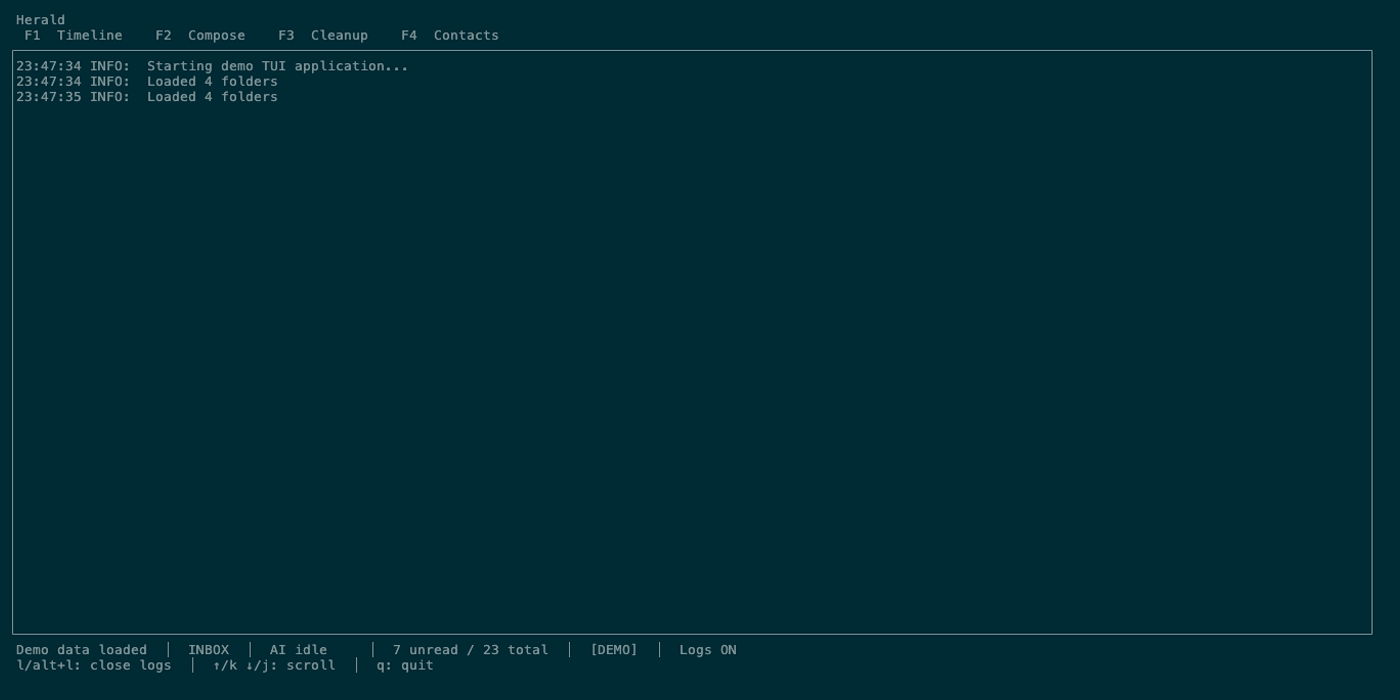
L / l | Main UI | Visible data can be interacted with. | Toggles the log viewer overlay. |
ctrl+r / r | Main UI | Not loading. | Refreshes the current folder and clears Timeline chat filters. |
S | Main UI | Settings overlay is not already open. | Opens settings as a compact centered overlay over the current screen. |
t | Main UI | AI classifier is configured and work is available. | Starts folder classification. |
? | Main UI and Herald-owned overlays | Visible data can be interacted with. | Opens context-sensitive shortcut help; pressing ?, esc, or q closes it. |
esc | Main UI and overlays | A transient state is active. | Closes the most specific state first, such as quick reply, visual mode, full-screen preview, chat filter, Timeline preview, search, Compose AI panel, Compose status message, or the Compose screen itself. |
Mouse Controls
Section titled “Mouse Controls”Mouse controls are convenience shortcuts over the same model as keyboard focus and selection. They are useful for trackpad-heavy terminal sessions, SSH clients that forward mouse events, and browser terminal sessions such as ttyd.
| Mouse action | Context | Result |
|---|---|---|
| Click a top tab | Main UI | Switches to Timeline, Contacts, or Calendar when available. |
| Click a folder/sidebar row | Timeline with sidebar visible | Selects the folder and loads it. |
| Click a Timeline row | Timeline table | Selects the row and opens the split preview. |
| Scroll over Timeline rows | Timeline table | Moves the Timeline cursor by small steps and refreshes the open preview. |
| Scroll over an email preview | Timeline preview | Scrolls the message body. |
| Click a Calendar mini-month day | Calendar rail | Selects that day or visible range. |
| Click a Calendar event | Calendar views | Selects the event; double-click opens the full detail view. |
| Click a Calendar checkbox or swatch | Calendar rail | Shows or hides that calendar where supported and persists the visible-calendar selection. |
| Scroll over Calendar rows or events | Calendar views | Moves through the visible calendar list or event stack in small steps. |
| Click an OSC 8 email link | Terminal-supported email preview links | Opens the original URL through the terminal. |
Press m in Timeline or Calendar to temporarily release Herald’s mouse capture for terminal-native text selection. Press m again to restore Herald’s clickable and scrollable navigation.
Workflows
Section titled “Workflows”Move Between Tabs
Section titled “Move Between Tabs”- Press
1,2, or3, or use the corresponding function-key aliases when available. - Watch the tab bar highlight move.
- Use the bottom key hints to learn the active tab’s controls.
Browse contexts also accept 1, 2, and 3 as visible tab aliases. F3 remains a temporary Contacts alias, while F4 mirrors Calendar where function keys are easier to reach than number keys.
Use Panel Focus
Section titled “Use Panel Focus”- Open a screen with multiple panels, such as Timeline with the sidebar visible.
- Press
tabto move focus to the next panel. - Press
shift+tabto move focus back. - Use
j/kor arrow keys; navigation applies to the focused panel.
Open Chat
Section titled “Open Chat”- Press
gfrom a wide terminal. - Type a mailbox question.
- Press
enterto send. - Press
escortabto close or leave chat focus.
Inspect Logs
Section titled “Inspect Logs”- Press
l. - Scroll with
j/kor arrow keys. - Press
lagain to close.
Open Compact Overlays
Section titled “Open Compact Overlays”- Press
?for shortcut help,Sfor settings, or chooseSettings > Sync & Cleanupfor cleanup configuration. - Scroll or move through the overlay with its local controls when its content is taller than the modal.
- Press
escor the documented close key to return to the same tab, panel, or underlying overlay state.
States
Section titled “States”| State | What you see | What to do |
|---|---|---|
| Startup loading | A loading banner, progress text, optional progress bar, elapsed time, and q quit hint. | Wait for sync or press q. |
| Visible-data loading | Existing cached rows remain visible and a top sync strip explains current IMAP work. | Continue reading cached data while sync completes. |
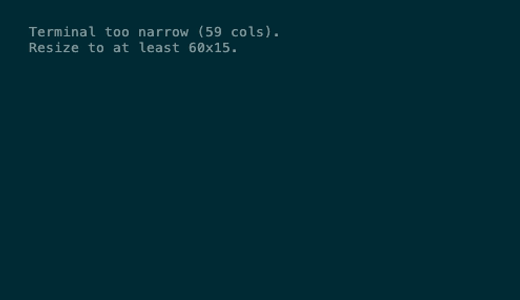
| Minimum terminal | A size guard replaces the normal UI below roughly 60x15. | Resize the terminal. |
| Sidebar auto-hidden | Status includes a sidebar hidden notice. | Widen the terminal or press B when the tab supports the sidebar. |
| Chat unavailable at size | Status says chat is hidden at this size. | Widen the terminal before pressing g again. |
| AI unavailable | AI chip reads off/down or AI actions show a concise error. | Configure AI or continue using non-AI mail features. |
| Logs overlay | Log viewer is on top of the current tab and status includes Logs ON. | Press l or Alt+L to close. |
| Compact modal | Help, settings, automation rule editors, prompt editors, cleanup manager, or dry-run previews are centered over the current screen. | Use the overlay’s local keys; at 50x15, resize until the minimum-size guard clears. |
| Calendar rail | Calendar source groups and swatches are shown beside the current calendar view. | Press tab to focus the rail, then space to show or hide a calendar. |
| Confirmation | Status bar asks for y confirm or n/Esc cancel. | Confirm only if the described action matches your intent. |
Data And Privacy
Section titled “Data And Privacy”The global UI reads cached message metadata, folder counts, sync state, deletion progress, AI scheduler state, and logs generated by the current Herald process. Opening chat can send a compact mailbox context to the configured AI provider. Opening settings can read and write config fields, credentials, tokens, and provider keys.
Troubleshooting
Section titled “Troubleshooting”If a key seems to do nothing, press ? to open shortcut help or check the bottom key hints and focused panel. Many keys are context-sensitive: for example, space expands a folder when the sidebar is focused but selects the highlighted Timeline row when Timeline is focused.
If a panel disappeared, check terminal width. Herald hides the sidebar or refuses to open chat when there is not enough room to render the remaining mail view.
If a prompt will not close, press esc first. If that does not apply, ctrl+c still quits globally. Plain q quits from browse contexts, but it is normal text inside Compose and search inputs.
Screenshot Placeholders
Section titled “Screenshot Placeholders”